Rota guide
Rota plans who works when in a pub, restaurant, café or bar. Managers set up their venues, add their people, auto-fill a week, check it against the UK working-time rules and send it out. Staff get one email, accept or decline their shifts, and see their week in My shifts on a phone or computer. This guide follows Campus Hospitality, a made-up business with three venues: Scarman House, a restaurant open 07:00 to 23:00, Radcliffe, open 07:00 to 22:00, and The Slate, open 10:00 to 23:00 and closed on Sundays.
1Get access and set up your business
To run a rota you need an EstimateIt account with access to Rota. On Your account, under Your access, press Request access next to Rota, and you'll get an email when the administrator decides (see the Your account guide). Then open Menu, then Apps, then Rota. Staff don't need to do this: they join from their manager's invite (see Join your team's rota).
The first time, Rota asks for your Business name and your First venue name. Campus Hospitality starts with Scarman House and adds Radcliffe and The Slate afterwards. Press Create business.
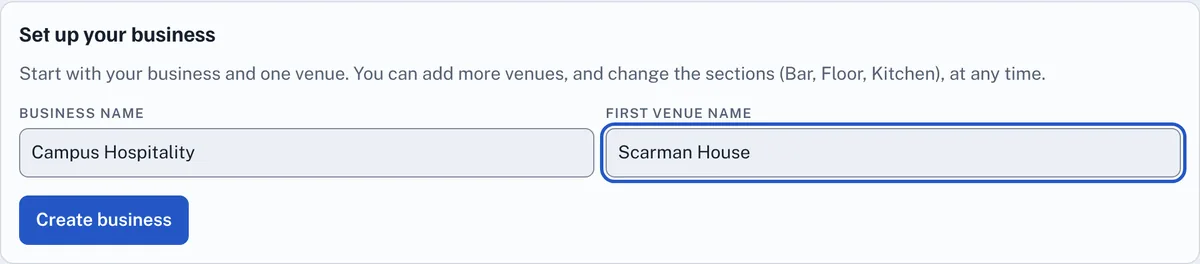
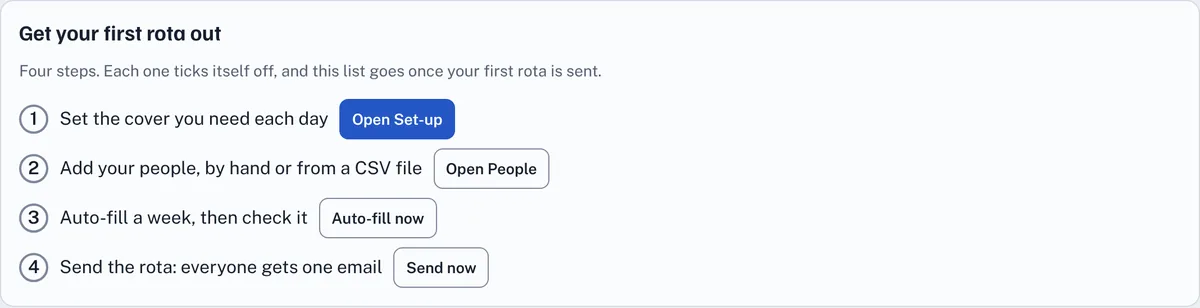
Until your first rota goes out, Get your first rota out at the top of the Rota tab lists four steps: set the cover you need each day, add your people, auto-fill a week and send the rota. Each one ticks itself off, and its button takes you to the right place. The list goes away once your first rota is sent.
Managers see five tabs: Rota, People, Availability and leave, Set-up and Activity. Staff see My shifts, Venue rota and My availability and leave.
2Add your venues and the cover each one needs
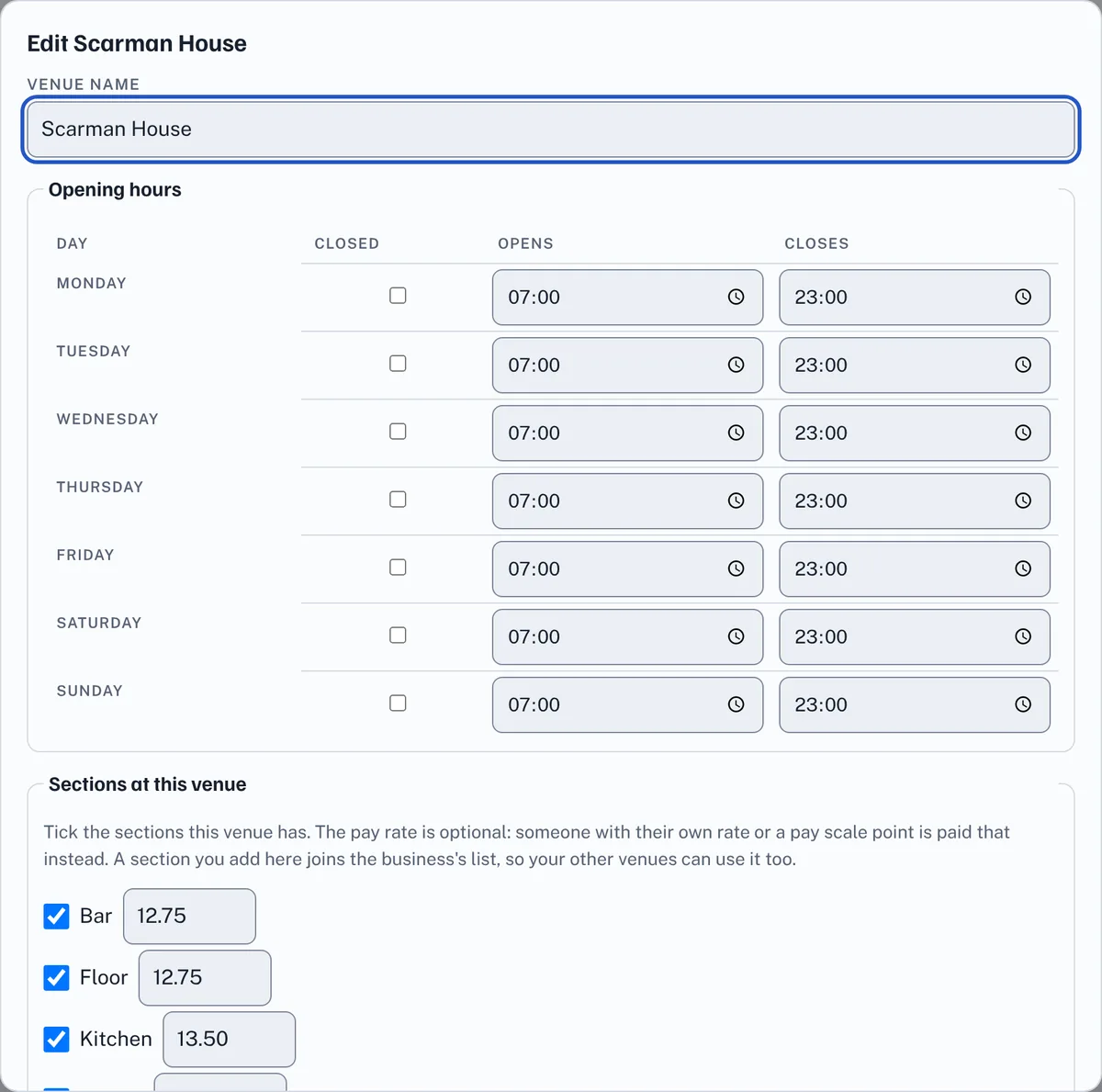
On the Set-up tab, under Venues, press Add a venue, or Edit next to a venue you already have. For each venue set:
- Opening hours for each day, or tick Closed. The Slate is ticked closed on Sunday, so nothing is ever rostered there that day.
- Sections at this venue: tick the areas this venue has, such as Bar, Floor and Kitchen. A venue you add starts with none; the list to choose from is every section your business has used, and a name you type under Add another section joins it, so your other venues can use it too. The Rate next to a section is an optional pay rate for work there. See Sections, pay scale and settings.
- Usual cover: how many people you need in each section, and when. Cover can only use the sections ticked for the venue. For Scarman House on a Monday that might be 2 on the Floor from 07:00 to 15:00, 3 on the Floor from 15:00 to 23:00, 1 in the Kitchen all day and 1 behind the Bar from 12:00.
To save typing, Start from a preset (Pub, Restaurant or Café) and press Use this preset: it fills every open day, and you then change anything. Copy this day to every open day and Copy Monday to all weekdays copy one day's cover to the others. Add a cover row adds a line and Remove takes one away. Press Save venue.
The cover is what auto-fill aims for and what Gaps in cover measures. To change one day only, such as a busy graduation day at Scarman House, press Cover above that day on the rota and change it there; Use the venue's usual cover puts it back.
Delete venue removes a venue; a business always keeps at least one.
3Sections, pay scale and settings
Sections are the areas people work in, such as Bar, Floor and Kitchen. They belong to a venue: a business has one or more venues (Scarman House, Radcliffe, The Slate) and each venue has its own sections. Choose them when you add or edit the venue, as described in Add your venues. Scarman House might have Bar, Floor, Kitchen and Events, Radcliffe just Floor and Kitchen, and The Slate Bar, Floor and Barista. A new business's first venue starts with Bar, Floor and Kitchen; venues you add after that start with none, and you choose from the sections your business has used so far or type a new one.
A shift, a cover row and an auto-fill suggestion can only use a section the venue has. A person is marked with the type of work they can do (for example Bar), and can work at any venue that has that section; which venue they work at each week is up to you or auto-fill.
Pay scale. Under Pay scale on the Set-up tab is the Warwick FA scale, grades FA 1 to FA 8 and spinal points 9/RLW to 51, with each point's annual salary and hourly rate (from £13.45 to £38.46). Choose a person's Pay scale point on their page instead of typing a rate. Press Show the pay scale to see or change it: change a row's rate when the scale changes (for example each August), Add a row for another point, or Go back to the Warwick FA scale to start again. Press Save set-up to keep your changes.
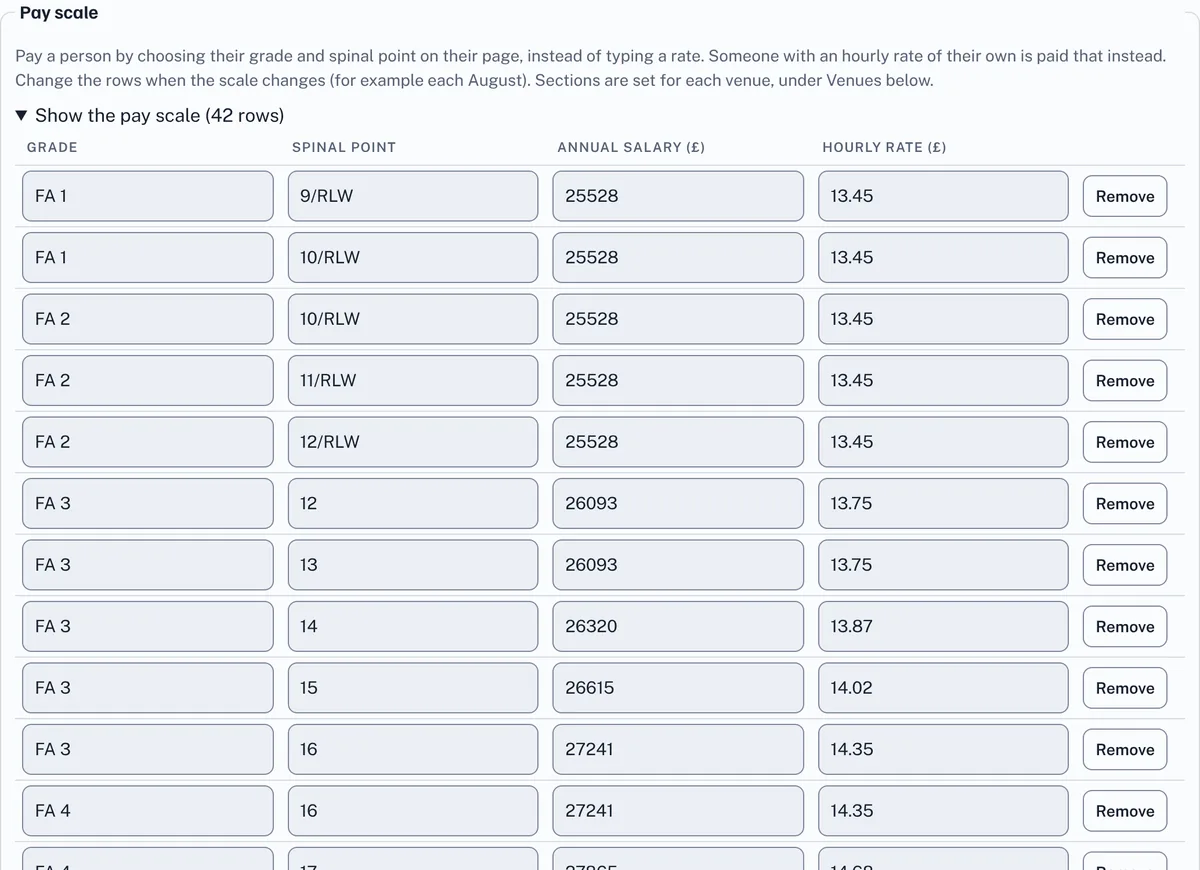
A shift is paid at the first of these that applies: the person's own Hourly rate, their Pay scale point, the venue's pay rate for that section, the business's rate for the section, and finally the legal minimum wage for their age. The minimum wage check is unchanged, so a rate below the legal minimum is still flagged.
Under Settings on the Set-up tab:
- Warn about changes made fewer than this many days before a shift: a shift changed later than this is flagged on the rota and counted in Changes since the rota was sent.
- Labour cost target (% of sales): the rota compares the week's pay with your forecast sales and shows the labour percentage against this target.
- When suggesting people, prefer: A fair spread of hours, The lowest cost, or Fewest changes to people's usual hours. Auto-fill and Fill both use it.
- Shortest shift auto-fill makes and Longest shift auto-fill makes, in hours.
- Swaps and open shifts need a manager's approval. Leave it unticked to let a swap go through as soon as someone suitable takes it.
Press Save set-up. Delete this business, at the bottom, removes everything about it, and can't be undone.
4Add your people
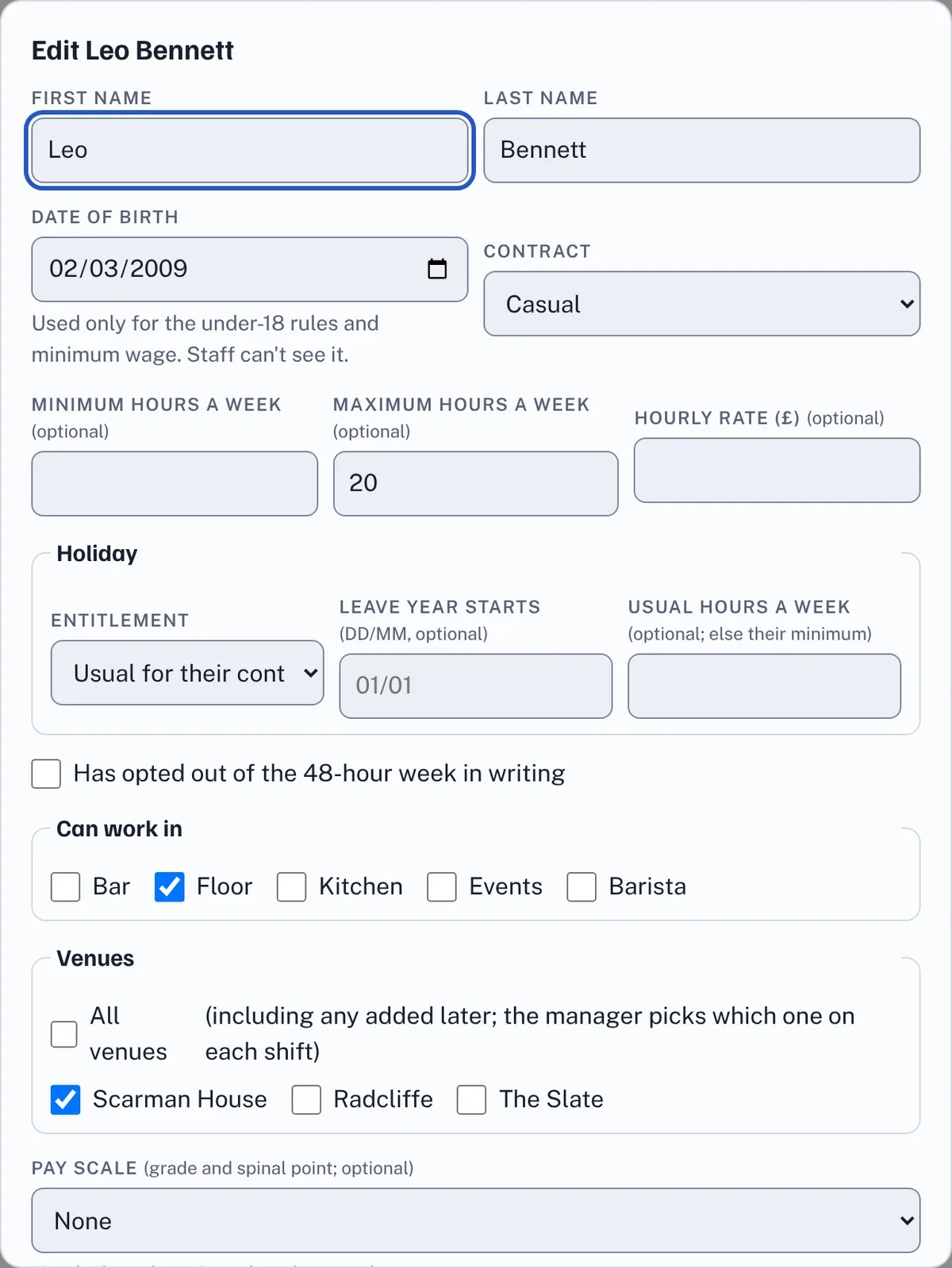
On the People tab, press Add a person, or Edit next to someone. You need their First name, Last name, Date of birth and Contract (full time, part time, zero hours or casual), at least one section under Can work in and either at least one venue under Venues or All venues ticked. You can also add:
- Minimum hours a week and Maximum hours a week. Auto-fill tries to give everyone at least their minimum, and the rota shows Under contract when someone is short.
- All venues: tick it for someone who can work anywhere, including venues you add later. The People table shows All venues. They are still checked for age, rest and hours at each venue; you or auto-fill choose which venue they work each week.
- Hourly rate (£), used for the labour cost and for Hours for payroll. With no rate of their own, a person is paid their Pay scale point if they have one (the table shows its rate, and the tooltip names the grade and point), then the venue's pay rate for the section, then the legal minimum wage for their age (Default in the table).
- Pay scale: a grade and spinal point such as FA 3, point 14 (£13.87 an hour). Used when there is no hourly rate of their own.
- Holiday: see Availability, leave and holiday.
- Has opted out of the 48-hour week in writing. Only tick this when you have their signed opt-out.
- Email (needed to invite them), Phone and Employee reference (your payroll number for them).
The date of birth is used only for the under-18 rules and the minimum wage. Staff can't see it. Leo Bennett is 17, so the People table shows 17 (under 18) and the stricter rules apply to him.
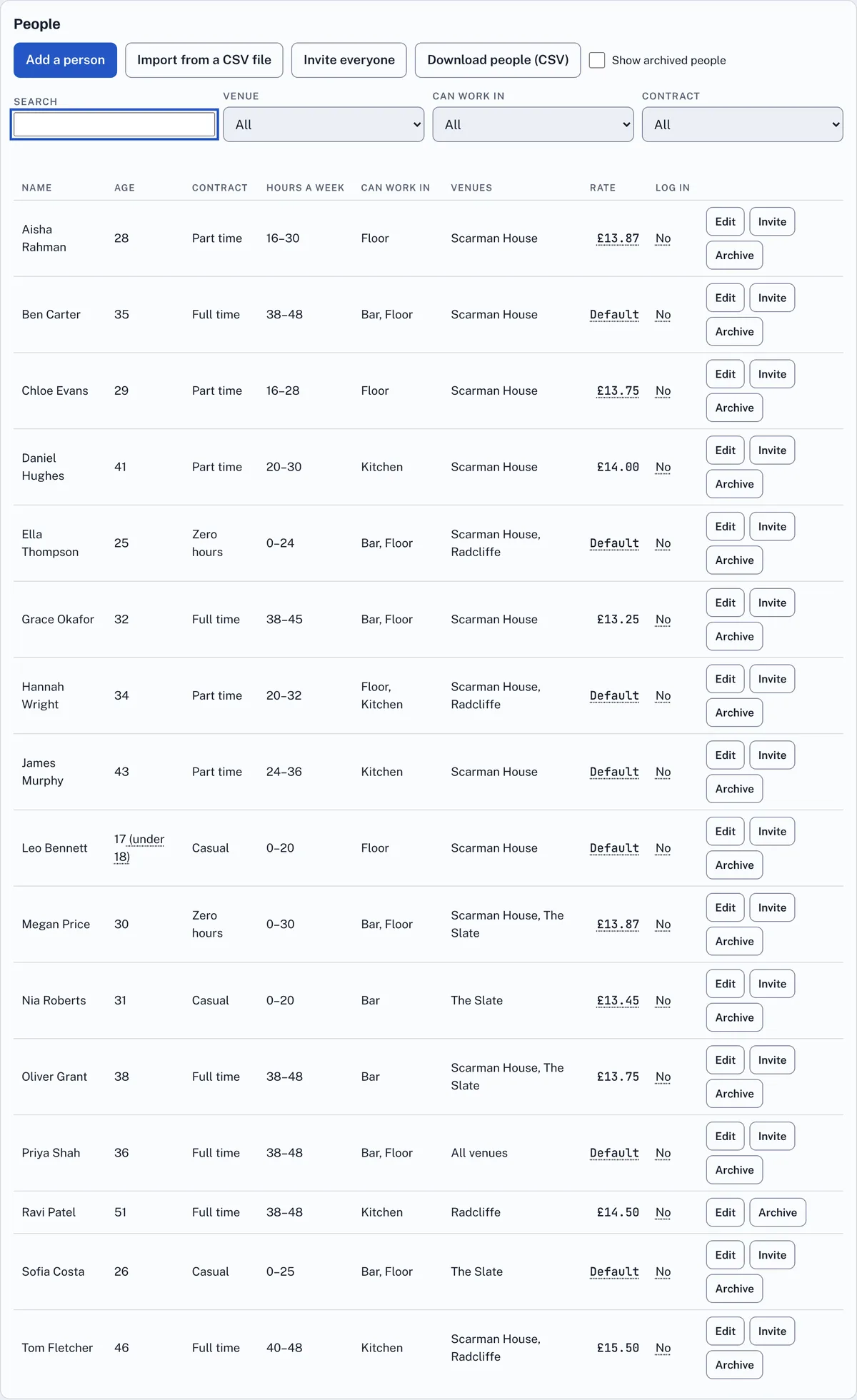
The table can be filtered by Search, Venue, Can work in and Contract. Archive hides someone who has left without losing their past shifts; tick Show archived people to see them again. Download people (CSV) saves the list as a file.
5Import people from a CSV file
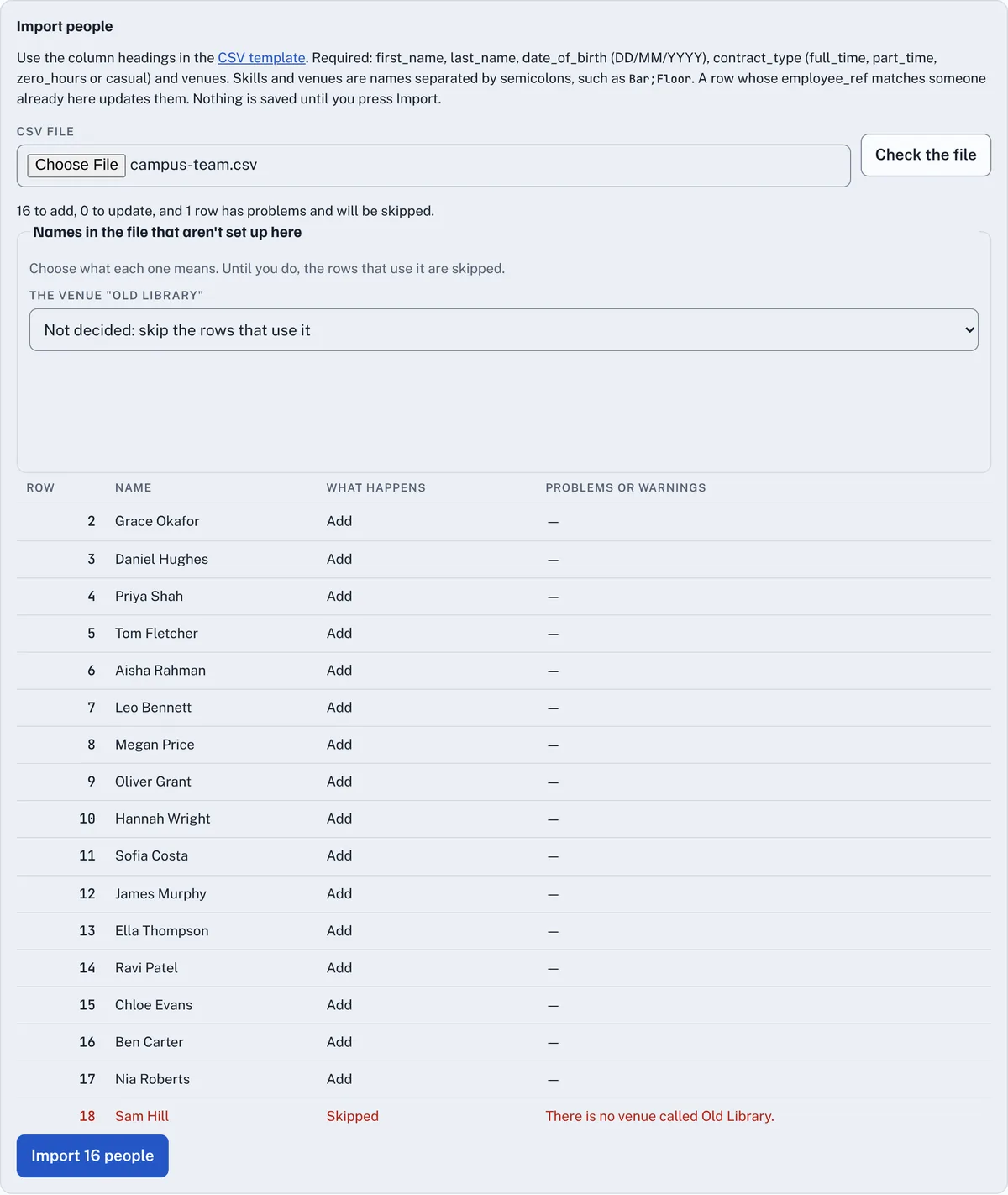
To add a whole team at once, press Import from a CSV file on the People tab. Download the CSV template and fill it in from your spreadsheet or payroll system. The required columns are first_name, last_name, date_of_birth (DD/MM/YYYY), contract_type (full_time, part_time, zero_hours or casual) and venues. Several sections or venues go in one cell, separated by semicolons, such as Scarman House;Radcliffe. Optional columns include spinal_point (a grade and point such as FA 3 14, or a point on its own such as 14 when every grade with it pays the same) and all_venues (yes for someone who can work anywhere; venues can then be left empty). A row whose employee_ref matches someone already in Rota updates them instead of adding them again.
Choose the file and press Check the file. Nothing is saved yet: Rota shows what will happen to each row, with any problems or warnings. If the file uses a name Rota doesn't know, such as a venue called Old Library, Names in the file that aren't set up here asks what it means. Choose one of your venues or sections, or leave it as Not decided: skip the rows that use it. When it looks right, press Import.
6Invite your team
People don't need to log in to get their shifts: the rota email works on its own. To let someone see My shifts, set their availability, ask for leave and swap shifts, press Invite next to them, or Invite everyone to invite everyone with an email address who hasn't been invited yet. They get an email with a link that works for 14 days. Resend invite sends a new one. The Log in column shows who has joined.
7Availability, leave and holiday
The Availability and leave tab shows each person's usual week and lets you set it for them. Each day is Available, Prefer not to work or Unavailable, with optional times, such as available on Saturdays from 17:00 only. Staff who have joined can set their own, and can add one-off dates that win over their usual week.
Leave waiting for a decision lists the leave staff have asked for. Approve or Refuse each one; the person gets an email either way. You can also add leave yourself. Approved leave shows as On leave on the rota, and nobody is rostered on it.
Holiday on each person counts their paid holiday. Usual for their contract gives 5.6 weeks a year of their usual hours, from the Leave year starts date (1 January unless you change it). For zero-hours and casual staff whose hours vary, holiday builds up at 12.07% of the hours they work. Rota shows each person how much they have left.
8The week's rota
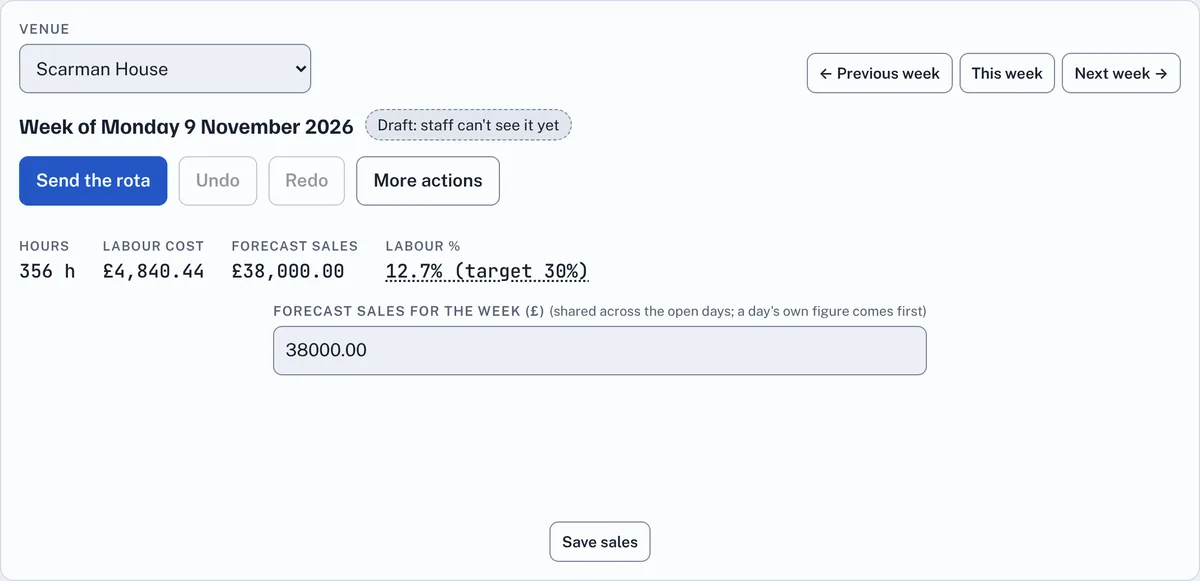
The Rota tab shows one venue and one week at a time. Choose the Venue, such as Scarman House, and use Previous week, This week and Next week. From Thursday onwards, Rota opens on next week, since that is usually the one you are planning.
A new week is a Draft: staff can't see it yet. Above the rota are the week's Hours, Labour cost, Forecast sales and Labour % against your target. Type the week's Forecast sales and press Save sales; it is shared across the open days unless a day has its own figure.
The top row, Vacant shifts, holds shifts that have a time and a section but nobody on them yet (see Vacant shifts). Under it, each row is a person and each column a day. Press + Add to add a shift, or press a shift to change it: its times, section, break, and notes. You can also drag a shift to another person or day; the shift form opens with the change so you can check it. Undo and Redo step back and forward through your changes. The Hours column shows each person's total against their contracted range, and Day total at the bottom gives the hours, the pay and the labour percentage for each day.
The strip under each day's date shows the cover through the day: green where you have what you need, red stripes where you are short, and amber stripes where you have more people than needed.
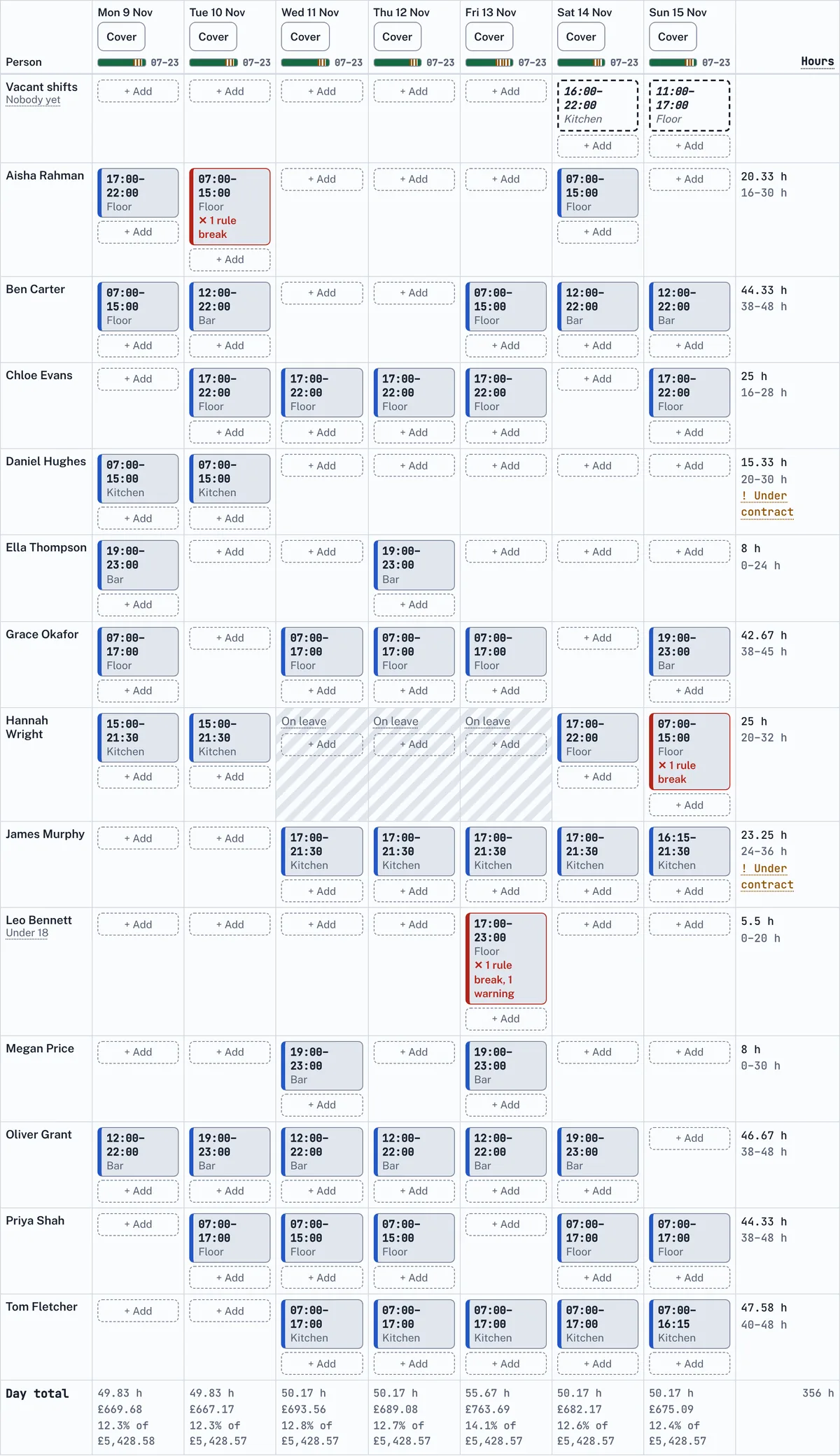
Not sure what a short label means, such as Under contract, Under 18 or Offered? Point at it, or tab to it with the keyboard, and a tooltip explains it. Press Escape to hide it. On a phone, tap the label.
Under More actions are Auto-fill week, Copy last week, Templates, View by section (the same week grouped by Bar, Floor and Kitchen) and Print.
9Vacant shifts
A shift doesn't need a person. To plan the cover first and fill it later, press + Add in the Vacant shifts row at the top of the rota (or in a section's row in View by section), choose the section and times, leave Person as Nobody yet (vacant shift), and save. On a phone, vacant shifts are at the top of each section in the day list. A vacant shift is drawn with a dashed outline.
- By hand: press a vacant shift and choose a person, or drag it onto a person's row. The usual checks run, so you see any rule break or warning straight away. You can't turn a shift that has someone on it back into a vacant one: delete it and add a vacant shift.
- By auto-fill: Auto-fill week gives each vacant shift to the best person who can work it without breaking a rule, at exactly its times, and says Fills a vacant shift. One nobody can take stays vacant, and the preview says so. Auto-fill doesn't make a second shift for the same gap.
- In the cover strip and gaps: a vacant shift still counts as a gap, because nobody is on it yet.
- When you send the rota: a rota with vacant shifts can still be sent. The send preview lists them and offers Put these in Shifts you could take, ticked by default, so anyone suitable can ask for them; untick it to leave them vacant.
Who can work a shift hasn't changed: the same availability, leave, skills, age and working-time rules apply when a vacant shift is filled as when any shift is added.
10Auto-fill a week
Choose More actions, then Auto-fill week. Rota works out shifts to meet your cover, and shows them to you before anything changes. It fills the hardest gaps first, such as Saturday nights and Sundays, so the weekend doesn't go short. It shapes each shift to the person's availability, so someone free from 17:00 gets 17:00 to 22:00 rather than nothing. It tries to give everyone their contracted minimum, never goes over anyone's maximum, and never breaks a rule. Your choice under When suggesting people, prefer decides between people who could all do a shift.
The preview lists every shift with why that person was chosen, such as Bar skill · available Saturdays · 34.67 h of 38 h contracted · £12.75/h, and says which gaps it couldn't fill and why. Press Add these shifts to add them to the draft, or Cancel. Shifts already on the rota are kept.
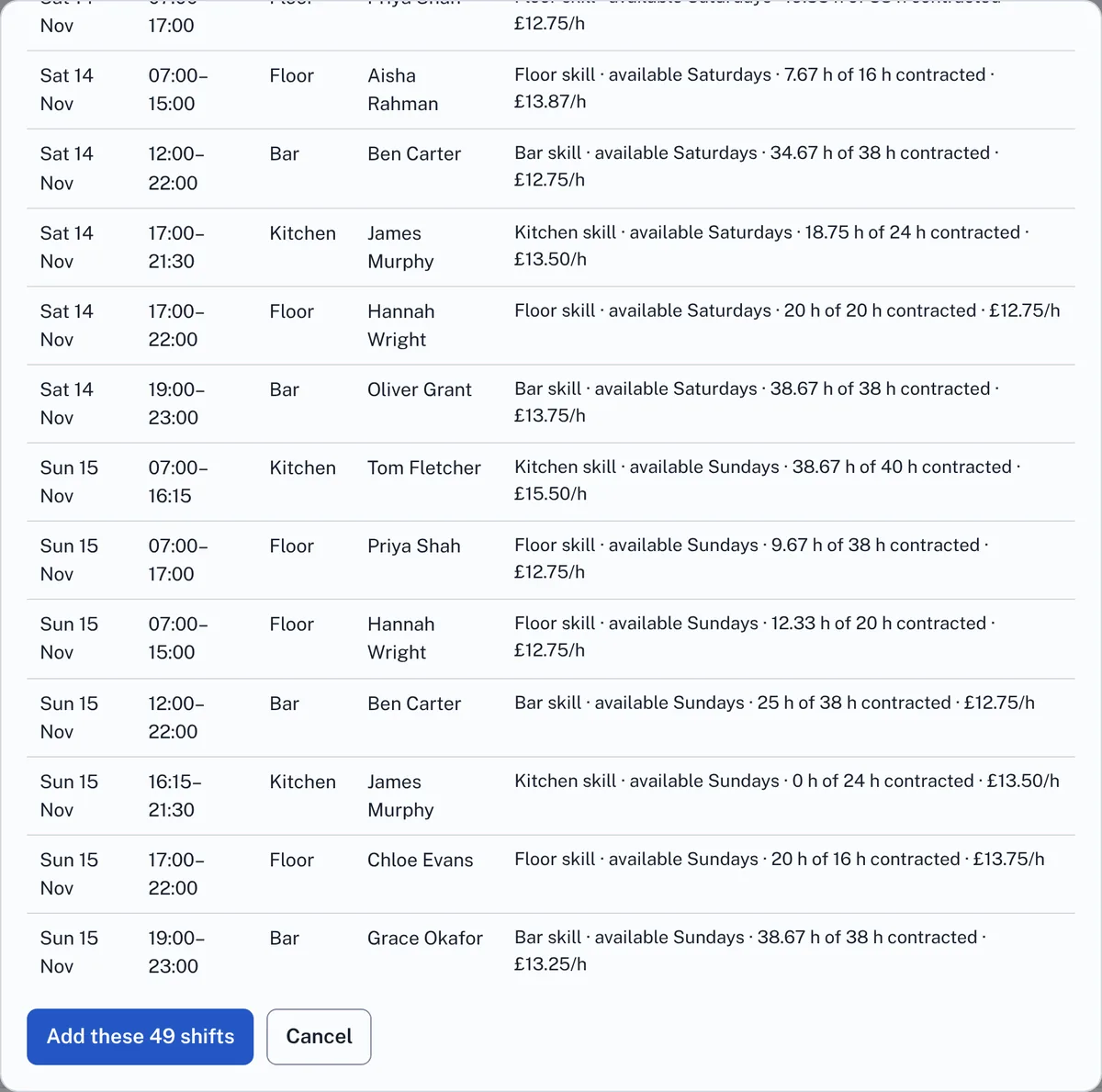
Auto-fill works one venue at a time. Someone who works at Scarman House and Radcliffe, such as Priya Shah, has their hours at both counted together, so filling Radcliffe after Scarman House won't push them over their maximum or break their rest.
11The checks and the UK rules
Every shift is checked as you add or change it. Checks, under the rota, counts the rule breaks and warnings; Show every check lists them with the person, the day and what to do. A shift with a rule break is outlined in red and says 1 rule break.

Rule breaks must be fixed before you can send the rota. They come from the UK working-time rules:
- 11 hours' rest between shifts (12 hours for under-18s).
- 24 hours in a row off each week, or 48 hours across a fortnight (48 hours every week for under-18s).
- A 20-minute break on a shift over 6 hours (30 minutes over 4.5 hours for under-18s).
- No more than 48 hours a week on average over 17 weeks, unless the person has opted out in writing.
- For under-18s: at most 8 hours a day and 40 hours a week, and no work between midnight and 4am. 10pm to midnight and 4am to 6am are allowed only when no adult can do it, with supervision, and you must record the reason on the shift. Nobody can be rostered before school leaving age.
- Pay below the National Minimum Wage or National Living Wage for the person's age.
- Two shifts that overlap, and a shift on approved leave.
Warnings are worth a look but don't stop you: someone who asked for leave that day, prefers not to work then, isn't marked as able to work in that section, doesn't usually work at that venue, or is under or over their contracted hours, and a change made at short notice.
For example, Leo Bennett is 17, so his Friday Floor shift at Scarman House until 23:00 is a rule break: change it to finish by 22:00, give it to an adult, or, if no adult can do it, record the reason on the shift.
12Gaps in cover
Gaps in cover lists every time a section has fewer people than the cover you need, such as Bar 19:00–23:00: 1 more person needed on a Sunday. Press Fill on a gap to see Who could fill this gap: the people free then, who can work in that section at that venue and wouldn't break a rule, best first, each with Suggested because and the reason. Press a name to add the shift, or Add a shift myself. When every section is covered, it says so.

13Send the rota
When the checks show no rule breaks, press Send the rota. Choose How to send it:
- Ask people to accept: each person gets one email with a link to accept or decline their new shifts. The shifts are Offered until they answer.
- Tell people their shifts: no answer needed. Use this when the shifts are already agreed.
If the week has vacant shifts still to come, the preview lists them too and offers Put these in Shifts you could take (ticked by default).
Before anything goes, Rota lists exactly who gets an email and what is in it, marked New, Changed or Removed. Press Send (it says how many emails, such as Send 12 emails) or Cancel. Once sent, staff can see the week in Venue rota and My shifts.
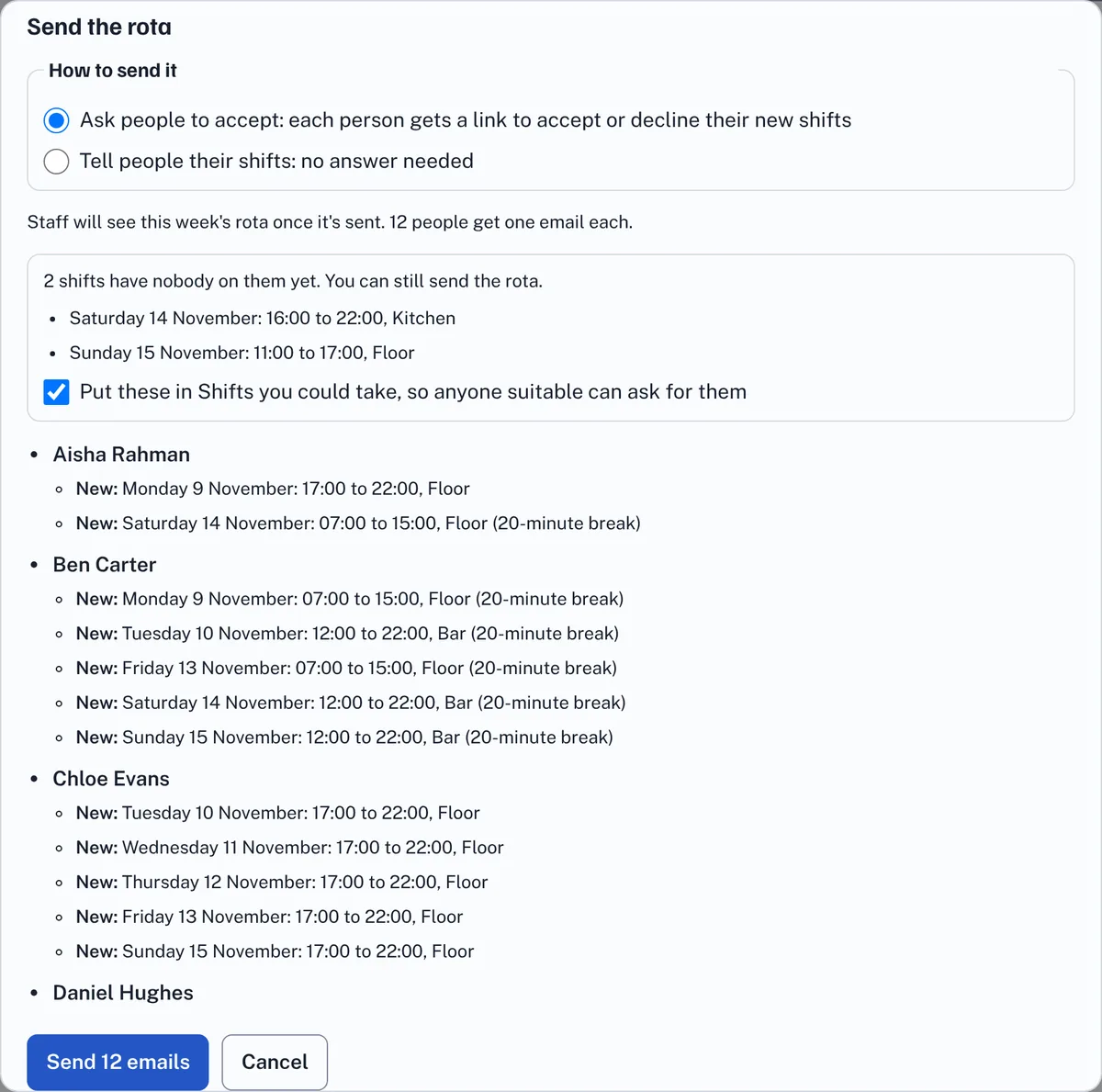
If you change the week after sending it, press Send the rota again: only the people whose shifts changed get an email, and it tells them what changed.
14Answers, re-offers and late changes
Each shift shows its state: Offered, Accepted or Declined. You can press a shift and Mark as confirmed when someone has agreed in person.
When someone declines, Rota offers the shift to someone suitable who isn't already on that week's rota, and emails them. If they also said they could work another time, or that they are never free at that time, that goes into their availability for future rotas. Offers have a deadline; a shift nobody accepts in time shows in Gaps in cover again.
Changes since the rota was sent lists what changed after sending: who, what and when, with short-notice changes flagged. The day before each shift, Rota emails a reminder to anyone who asked for one.
Answers, re-offers and reminders are sent by a job that runs every 15 minutes on the server, so allow a few minutes.
15Swaps and open shifts
Staff can press Offer to swap on one of their shifts, and you can press a shift and choose Open to the team for a shift with nobody on it yet. These appear in Shifts you could take for everyone who could work them without breaking a rule: the right section, at that venue, free then, and within their hours. Whoever asks first holds it.
If Swaps and open shifts need a manager's approval is ticked in Set-up, they then appear under Swaps and open shifts on the Rota tab for you to Approve or Refuse. Refusing leaves the shift on offer for someone else. Everyone involved gets an email.
For example, Megan Price, who works at Scarman House and The Slate, can take a Bar shift Oliver Grant has offered at The Slate on Saturday, but not one at Radcliffe, where she doesn't work.
16Copy last week and templates
More actions, then Copy last week, copies the shifts from the week before into this week's draft, at the same venue.
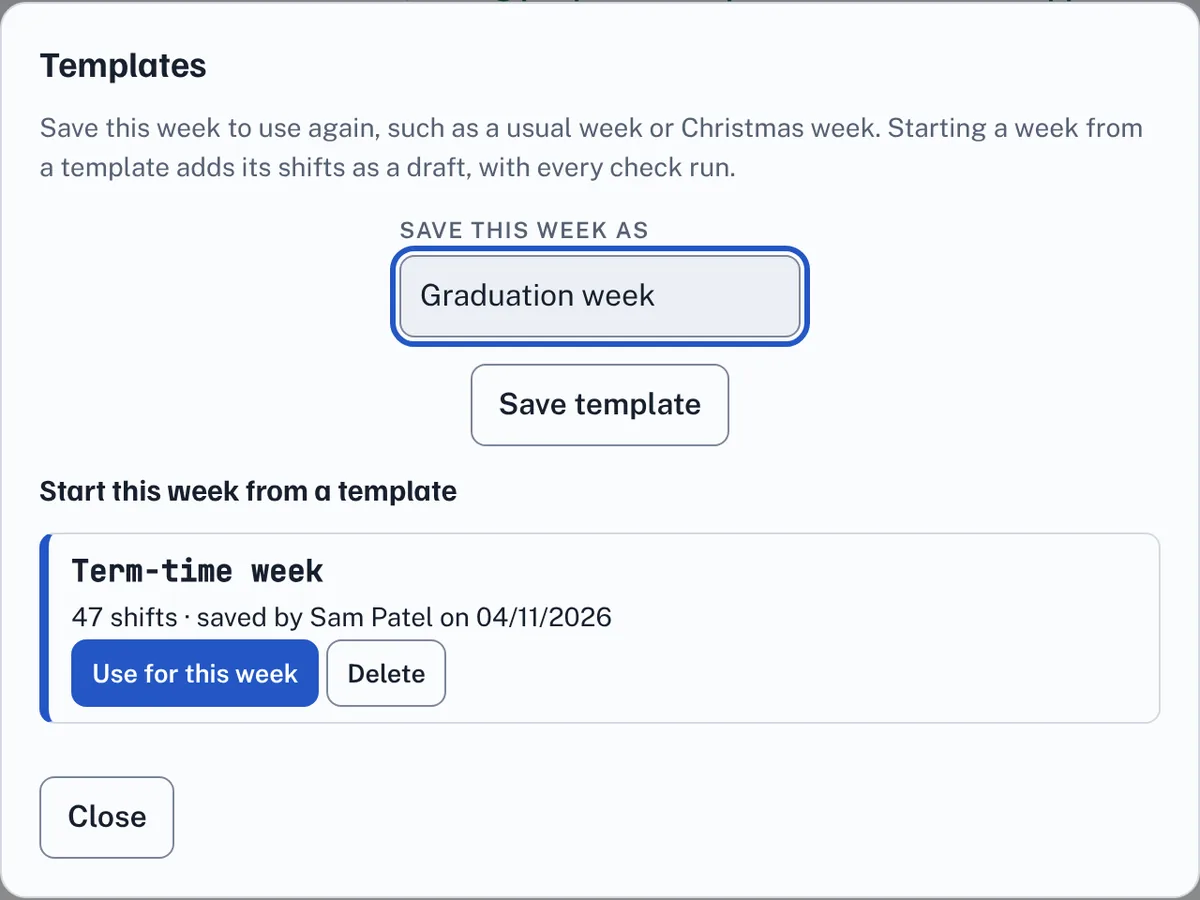
Templates keep a week you want again, such as Scarman House's Term-time week or a Graduation week. Type a name under Save this week as and press Save template. Under Start this week from a template, Use for this week adds a template's shifts to the draft, with every check run, so anyone now on leave or under 18 is caught. Delete removes a template.
17Messages to the team
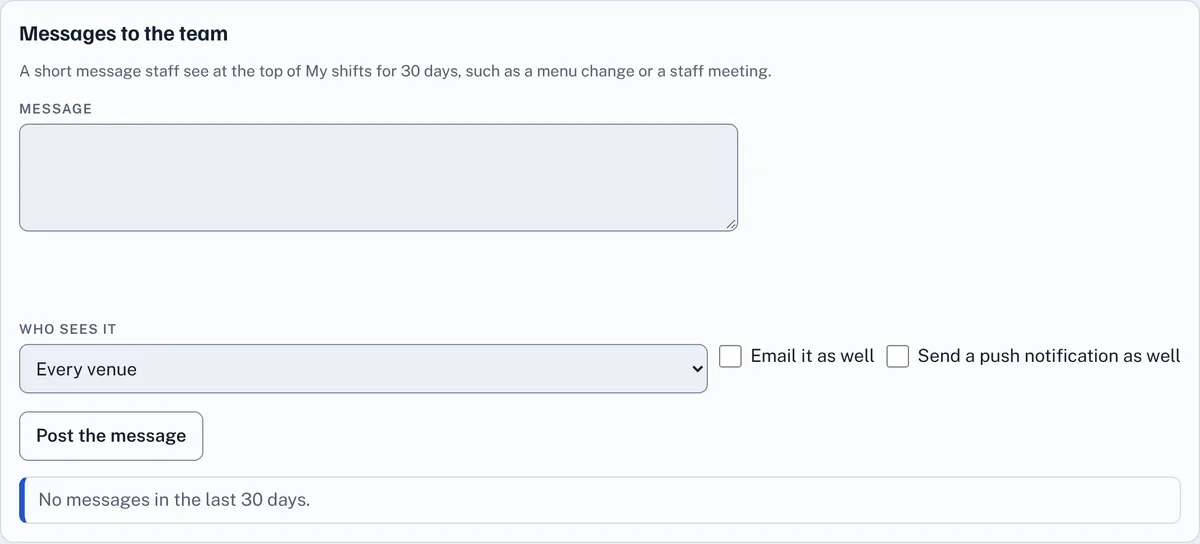
Messages to the team, on the Rota tab, posts a short message staff see at the top of My shifts for 30 days, such as a menu change or a staff meeting. Under Who sees it, choose Every venue or one venue, such as The Slate. Tick Email it as well or Send a push notification as well if it can't wait. Press Post the message. Recent messages are listed with a Delete button.
18Use Rota on a phone
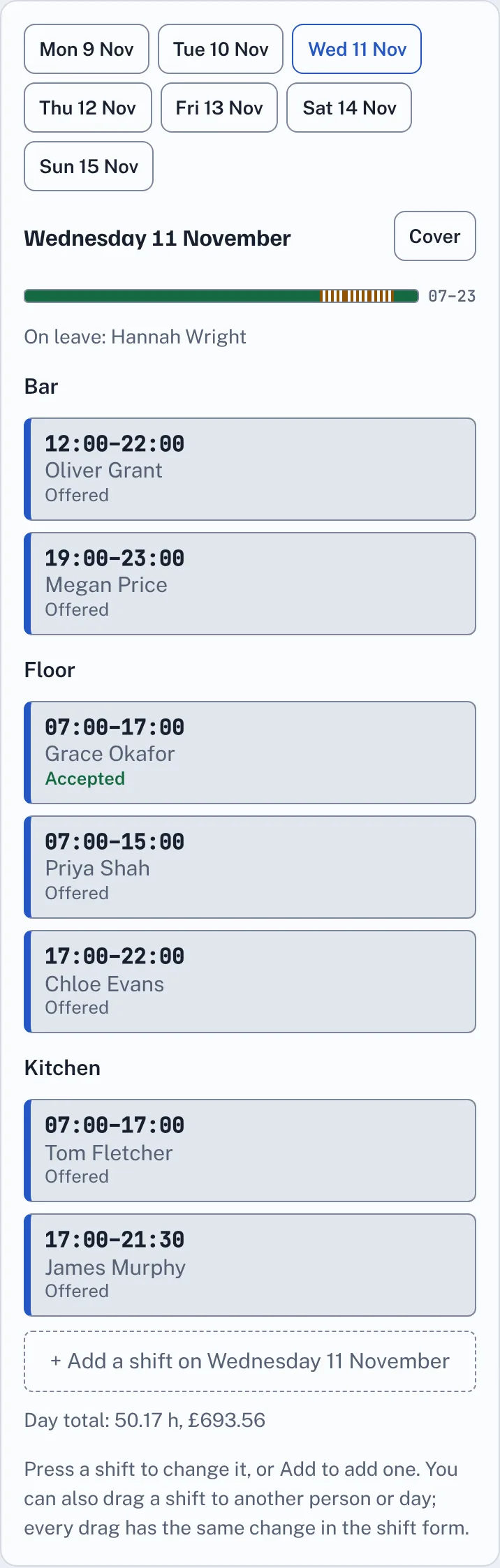
On a phone, the Rota tab shows one day at a time. Pick a day at the top; each section is listed with its shifts, who is on leave, the cover strip and the day's total. Press a shift to change it, or Add a shift for that day. Everything else, including sending the rota, works the same way.
19Hours for payroll, the API and webhooks
On the Set-up tab, Hours for payroll downloads the shifts people agreed to between a First day and a Last day (up to 93 days), with each shift's venue, section, break, paid hours, rate and pay, and the totals. When the rate came from the person's pay scale, the grade and spinal point are shown beside it. Shifts still waiting for an answer are left out. Press Download hours (CSV) and give the file to whoever runs your payroll.

API tokens let another system, such as payroll, HR or a till, read or add data. Give the token a name, choose What it can do, and press Make the token. Copy it straight away: it is shown only once. Webhooks tell another system when something happens, such as a rota being sent or a shift agreed. Both are explained for developers in the Rota API guide.
20Activity
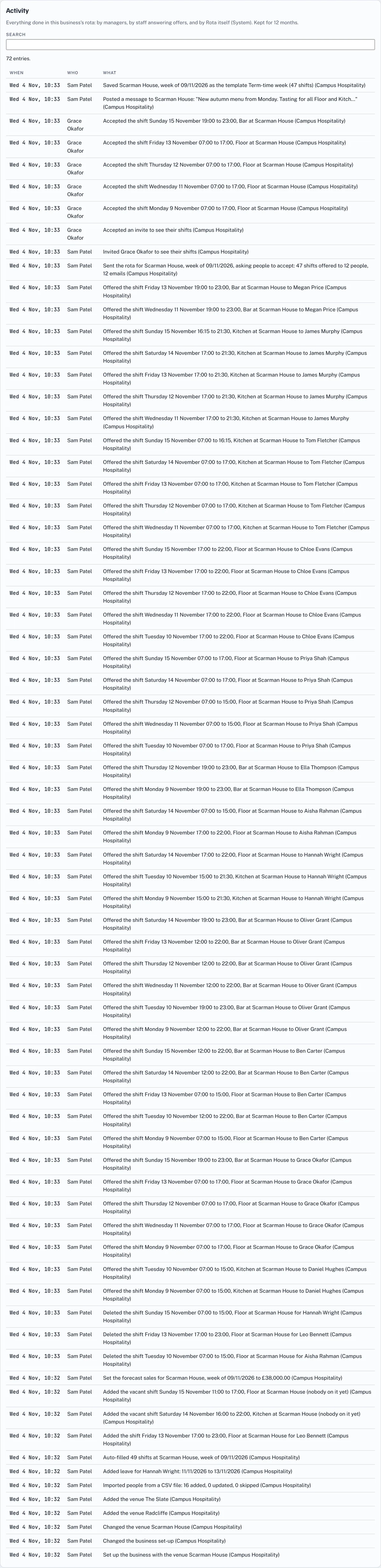
The Activity tab lists everything done in the business's rota, newest first, with When, Who and What: by managers, by staff answering offers, and by Rota itself (shown as System), such as a re-offer or a reminder. Use Search to find a person, a venue or a day. Entries are kept for 12 months.
21Join your team's rota
Your manager's invite email has a link. Open it and you'll see You've been invited to Rota. Log in, or create an EstimateIt account with the same email address, and press See my shifts. The link works for 14 days; if it has run out, ask your manager to press Resend invite.
You don't need to join to get your shifts: the rota email works without an account. Joining lets you see all your shifts in one place, set your availability, ask for leave and swap shifts.
22Answer your shift offers
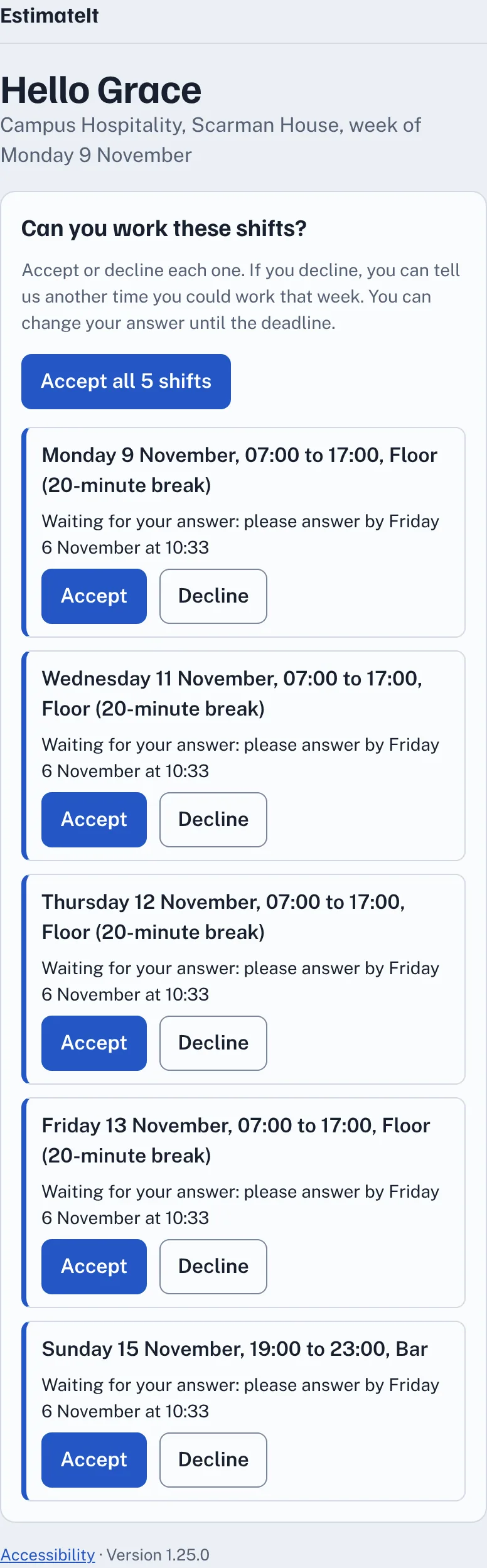
When your manager sends the rota and asks you to accept, you get one email with all your new shifts for the week. Press the link: no login is needed. Press Accept or Decline on each shift, or Accept all.
If you decline, you can say Could you work another time that week? with a From and Until time, or tick I'm never free at this time. Your manager's next rota takes both into account. You can change your answer until the deadline shown on each shift.
23My shifts
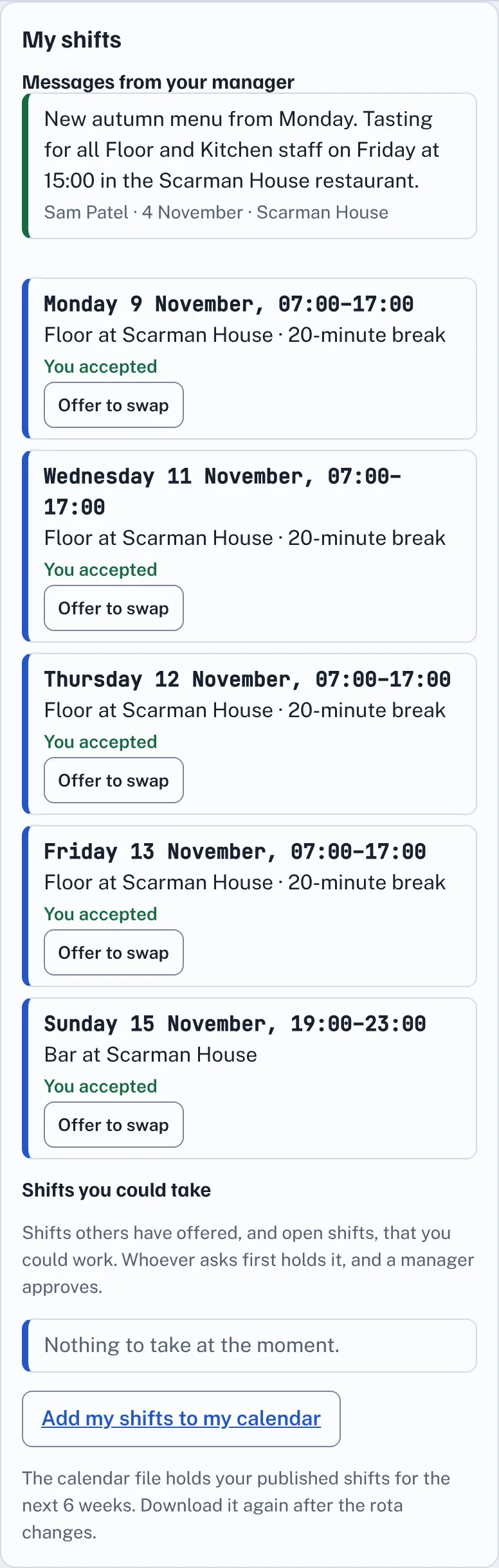
Open Menu, then Apps, then Rota. My shifts lists your shifts from today, at every venue you work at, with the section, the break and whether you have accepted. Any Messages from your manager are at the top. Venue rota shows everyone's shifts at your venue for the week, once it has been sent.
Offer to swap on a shift puts it in Shifts you could take for colleagues who could work it. Under Shifts you could take you'll see shifts others have offered and open shifts you could work; press Take this shift to ask for one. Whoever asks first holds it, and your manager may need to approve it.
Add my shifts to my calendar downloads a calendar file with your shifts for the next 6 weeks, for your phone's calendar, Outlook or Google Calendar. Download it again after the rota changes.
24Your availability and leave
On My availability and leave:
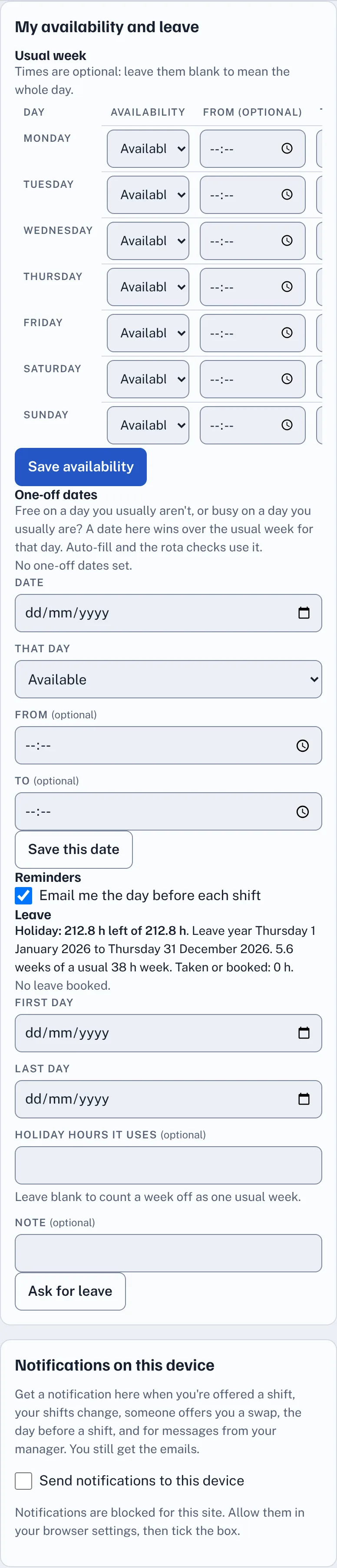
- Usual week: for each day choose Available, Prefer not to work or Unavailable, with optional times. Leave the times blank to mean the whole day. Press Save availability.
- One-off dates: free on a day you usually aren't, or busy on a day you usually are? Add the Date, what That day is, and optional times, and press Save this date. A date here wins over your usual week.
- Leave: shows how much holiday you have left this leave year. Add the First day and Last day, and a Note if you like, and press Ask for leave. Your manager approves or refuses it and you get an email. Leave Holiday hours it uses blank to count a week off as one usual week.
25Reminders, notifications and the app
- Reminders: tick Email me the day before each shift on My availability and leave.
- Notifications on this device: tick Send notifications to this device to get a notification when you're offered a shift, your shifts change, someone offers you a swap, the day before a shift, and for messages from your manager. You still get the emails. Send a test notification checks it works. If it says notifications are blocked, allow them for estimateit.co.uk in your browser's settings, then tick the box again. On an iPhone, add Rota to your Home Screen first.
- Install Rota as an app: in your phone's browser, choose Add to Home Screen (Safari's Share menu on an iPhone) or Install app (Chrome on Android). Rota then opens like an app.
- No signal? My shifts still opens with the last copy saved on your phone, and says it is offline and when it was saved. Answering offers and changes need a connection. The saved copy is deleted when you log out.
26Good to know
- Rota is built for UK hospitality. It checks the working-time rules, but it isn't legal advice: if you're unsure, check with ACAS or your adviser.
- One person can work at several venues: everything is checked across all of them, so Priya can't be rostered at Scarman House and Radcliffe at the same time.
- Staff only ever see their own shifts, their venue's sent rota and messages for their venue. They never see dates of birth, rates or other people's leave.
- Every rota email has a link only that person can use. Don't forward it.
- Everything a manager or a member of staff does is in Activity.
- Rota works with a keyboard and a screen reader, and on any screen size.
Glossary
The words used in Rota, A to Z.
- Accepted
- A shift the person has agreed to work, from their offer email or My shifts.
- Auto-fill
- Rota working out shifts to meet a venue's cover for a week, shown to you before anything is added.
- Cover
- How many people a venue needs in each section, and when. Each venue has a usual cover, and any day can have its own.
- Cover strip
- The bar under each day showing where you have the cover you need (green), are short (red stripes) or have more than needed (amber stripes).
- Declined
- A shift the person said they can't work. Rota offers it to someone else.
- Draft
- A week that hasn't been sent. Staff can't see it.
- Gap
- A time when a section has fewer people than the cover it needs.
- Labour %
- The pay for the shifts as a percentage of forecast sales, compared with your target.
- Leave year
- The 12 months a person's holiday is counted over, from 1 January unless you choose another date.
- Offered
- A shift sent to someone who hasn't answered yet.
- Open shift
- A shift with nobody on it that anyone suitable can take from Shifts you could take.
- Opt-out
- A person's written agreement to work more than 48 hours a week on average. Tick it on the person only when you have it signed.
- Pay scale
- A table of grades and spinal points with an hourly rate for each, loaded with the Warwick FA scale. A person can be paid by choosing their point.
- Rule break
- A shift that breaks a UK working-time rule. The rota can't be sent until it is fixed.
- Section
- An area people work in, such as Bar, Floor or Kitchen. Each venue has its own sections.
- Send the rota
- Emailing everyone their shifts for the week, with or without asking them to accept. After this, staff can see the week.
- Spinal point
- A step on the pay scale, such as point 14 of grade FA 3, which sets an hourly rate.
- Swap
- A shift someone has offered to a colleague. Whoever asks first holds it, and a manager may need to approve it.
- Template
- A saved week of shifts you can start another week from, such as Term-time week.
- Under 18
- Someone under 18 on the day of the shift. Stricter rules apply to their hours, breaks, rest and night work.
- Vacant shift
- A shift with a time and a section but nobody on it yet. You fill it by hand or with Auto-fill week.
- Venue
- One place your business runs, such as Scarman House, Radcliffe or The Slate, with its own opening hours and cover.
- Warning
- Something worth checking that doesn't stop the rota being sent, such as a person working on a day they prefer not to.
Cookie policy · Cookie settings · Accessibility · EstimateIt is an independent tool and is not affiliated with Atlassian or Jira. · Version 1.25.0