Planning Poker guide
How to run planning poker in EstimateIt. The Scrum Master chooses the settings, creates the room and runs it. Developers and QA each vote in secret, or the whole team votes together if the room is set up for one team estimate.
For Scrum Masters
1Choose your settings
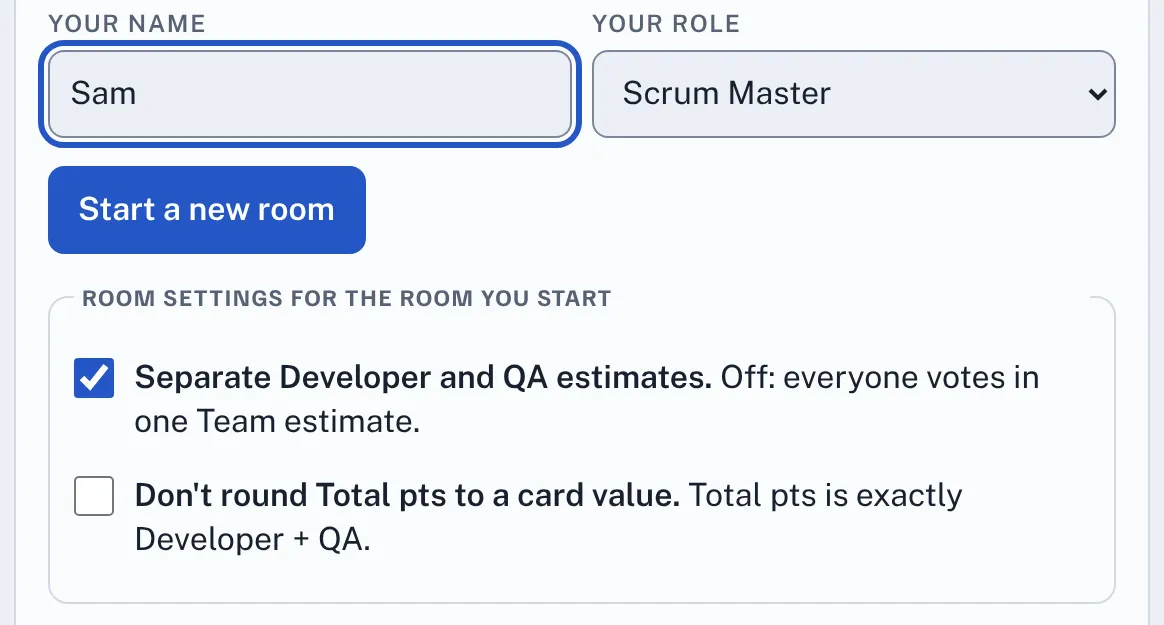
Before you start a room, choose the room settings. When you pick Scrum Master on the start screen, the checkboxes appear under Start a new room. If you're logged in, they're also under Settings on Your account. They are:
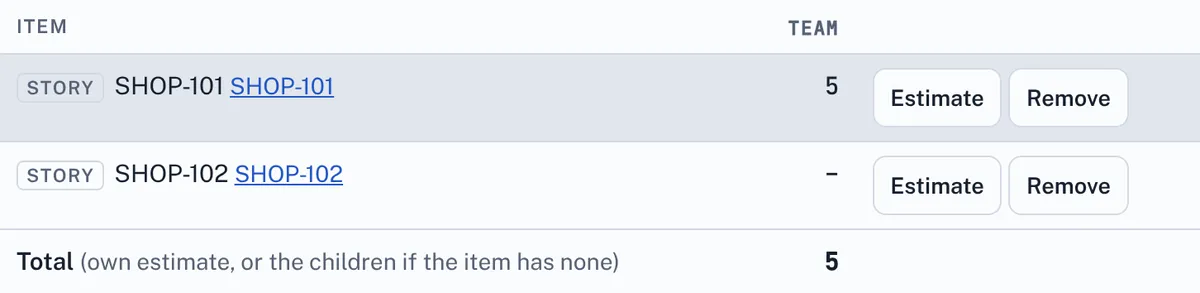
- Separate Developer and QA estimates. Ticked (the default), developers and QA vote in their own sections and the totals add the two together. Unticked, the room has one Team estimate: the roles are just Team and Scrum Master, everyone on the team votes together, and the Items and totals table has a single Team column.
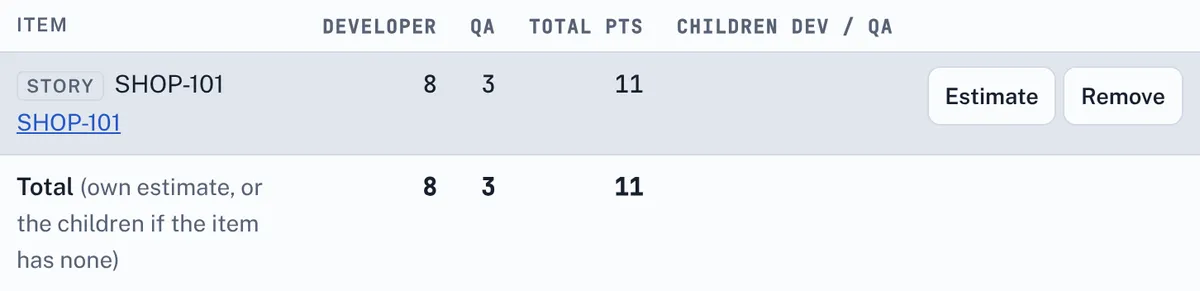
- Don't round Total pts to a card value. Unticked (the default), a total that isn't a card value is rounded to the nearest card, with ties going up, so 8 + 3 = 11 becomes 13. Ticked, Total pts is exactly Developer + QA, so 8 + 3 stays 11. This only applies when Developer and QA estimates are separate.
- Pre-populate median estimates for Developer and QA totals. Unticked (the default), nothing is agreed until you press a value. Ticked, when you reveal the votes the agreed estimate starts as the card closest to the median of the cards played, shown with "(median)". For example, votes of 3, 5 and 13 give 5, and votes of 3 and 8 (a median of 5.5) give 5. Halfway between two cards goes to the higher one, so 1 and 2 give 2. ?, ∞ and Pass are left out, and if nobody played a number nothing is filled in. T-shirt sizes use the middle size. Developer and QA each get their own median, and a Team room fills the Team estimate. The value is set once at the reveal: people changing their card afterwards doesn't move it, but Vote again works it out afresh at the next reveal.
Your choices are saved in your browser straight away and used for every room you start from then on. Each room keeps the settings it was started with, so changing them here doesn't affect a room that's already running. Everyone who joins your room works with your room's settings, whatever their own settings say.
2Create a room
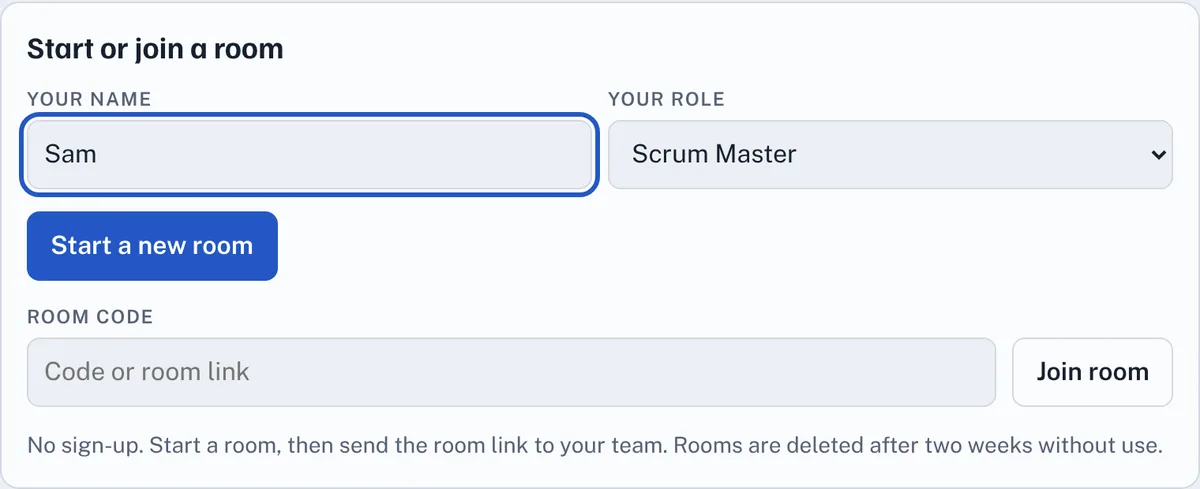
Open EstimateIt, type your name and choose Scrum Master as your role. The Start a new room button only appears for the Scrum Master role. Press it and your room opens straight away, using your current settings. There is no sign-up.
3Share the room link
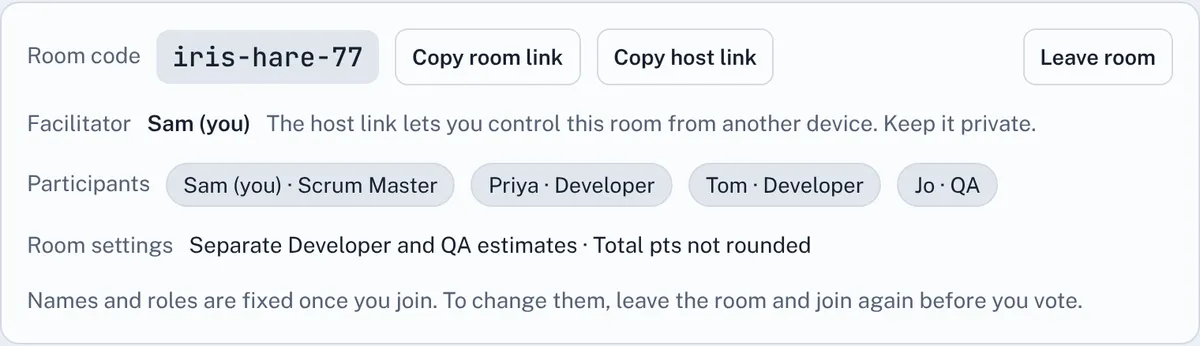
Press Copy room link and send it to your team in Teams, Slack or email. Everyone who opens it joins the same room. The participant list shows who has joined, and a faded name means that person has gone offline.
Copy host link is for you only. It lets you run the room from another device or browser. Keep it private, because anyone with it can control the room.
The Room settings line shows which settings this room uses, so everyone can see whether Developer and QA vote separately, whether totals are rounded and whether median estimates are pre-populated.
As the facilitator, you can change a running room's settings: press Change room settings on that line. On the Room settings page, tick or untick Don't round Total pts to a card value and Pre-populate median estimates for Developer and QA totals, then press Return to poker room. The changes apply to the room for everyone as soon as you're back, and the median is used from the next reveal. Separate Developer and QA estimates can't be changed once the room has started, because it decides everyone's roles. These changes are for this room only. Your settings for new rooms stay as they are.
4Paste in a list of Jira links
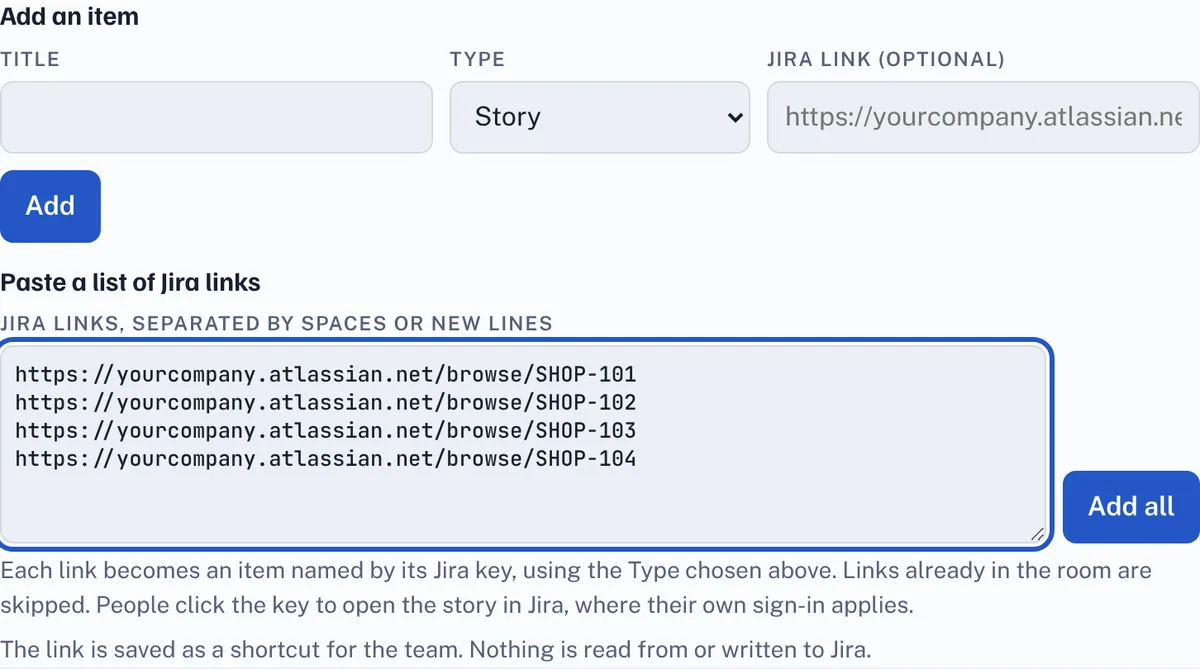
Scroll down to Paste a list of Jira links. First choose the Type (Story, Feature or Epic) in the Add an item row, because every pasted link uses it. Then paste your links, separated by spaces or new lines, and press Add all.
- Each link becomes an item named by its Jira key, such as SHOP-101.
- Links already in the room are skipped, so pasting the same list twice is safe.
- EstimateIt does not read from or write to Jira. The key is just a shortcut that opens the story in Jira with each person's own sign-in.
To add one item without a Jira link, type a title in Add an item and press Add.
5Check the list and pick an item
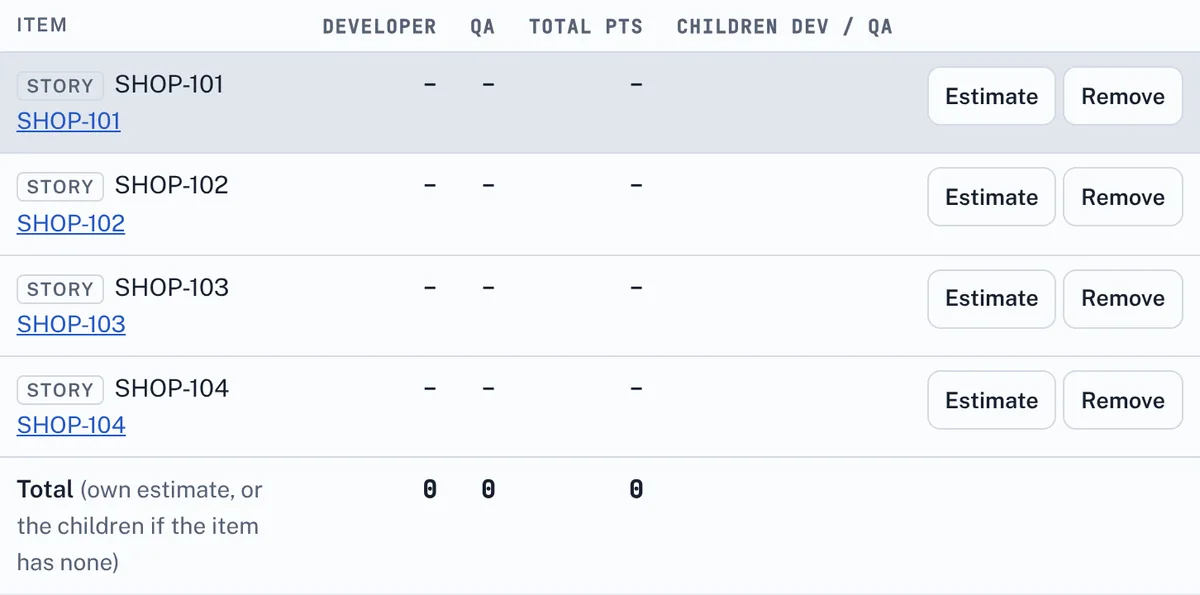
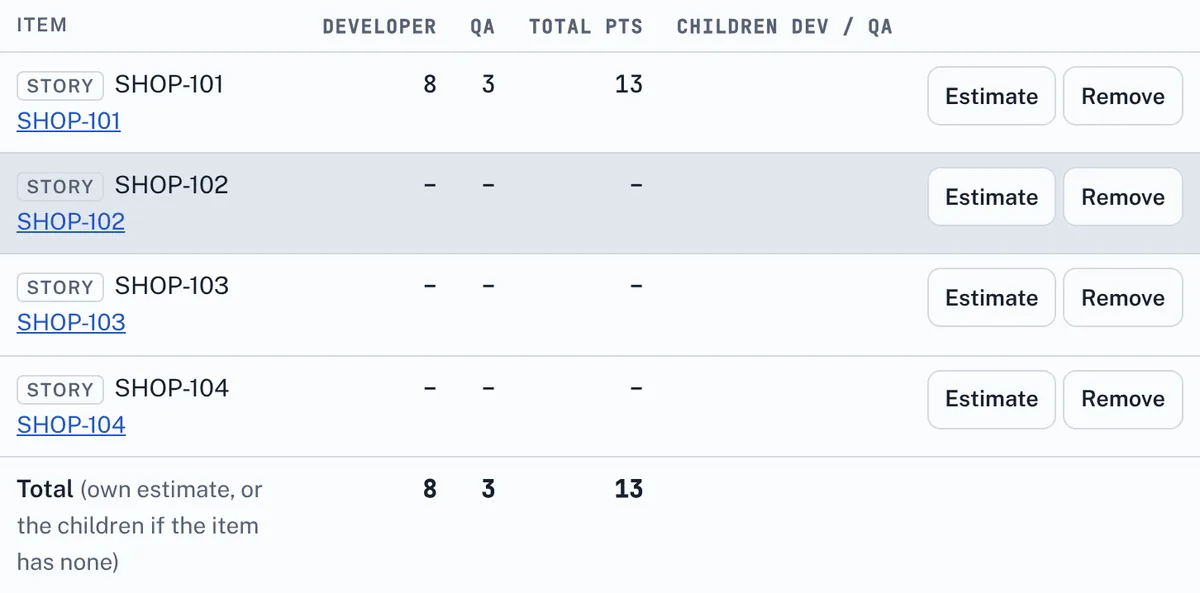
The items appear in the Items and totals table, and the first one is selected for estimating. Press Estimate on any row to estimate that item instead. The highlighted row is the one the team is voting on.
Remove takes an item off the list. Removed items are kept, with their votes, in a Removed list below the table, where you can re-add them or delete them for good.
6Choose the cards and wait for votes
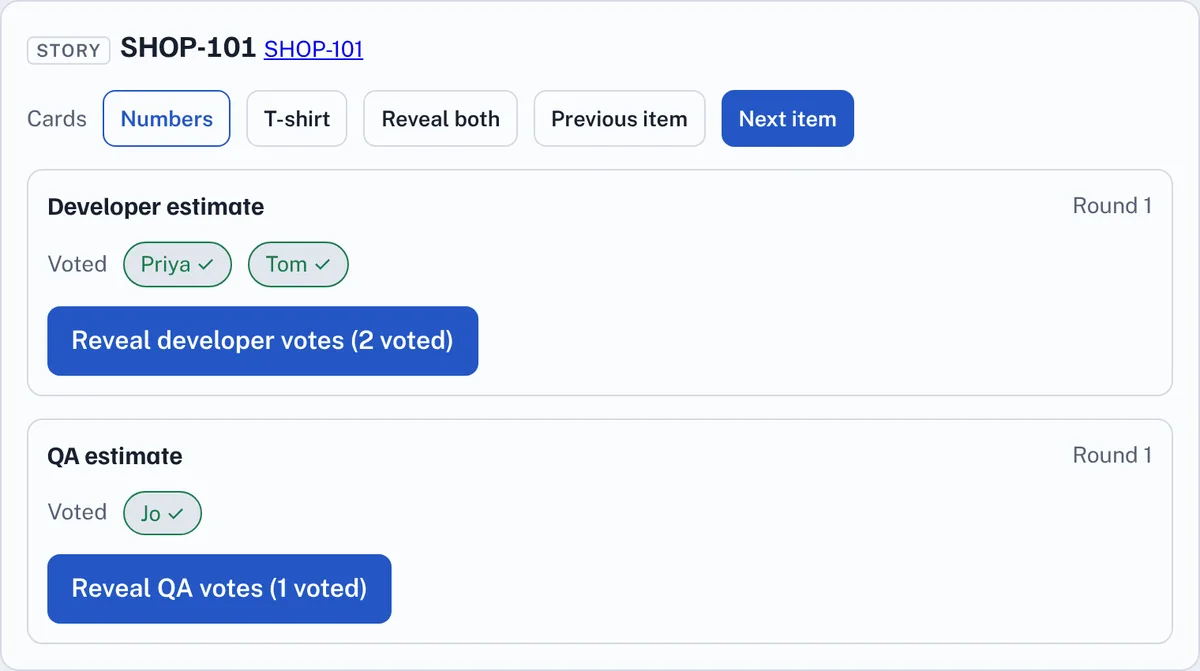
Above the votes, choose the cards: Numbers for stories, or T-shirt for features and epics. You can switch until the votes are revealed, but switching clears any votes already cast.
Developers and QA vote in separate sections. A name gets a tick when that person has voted, but nobody can see the card itself. When everyone has voted, press Reveal developer votes, Reveal QA votes or Reveal both QA and Dev votes.
In a Team room there is one Team estimate section that everyone votes in, and a single Reveal votes button.
7Discuss the result
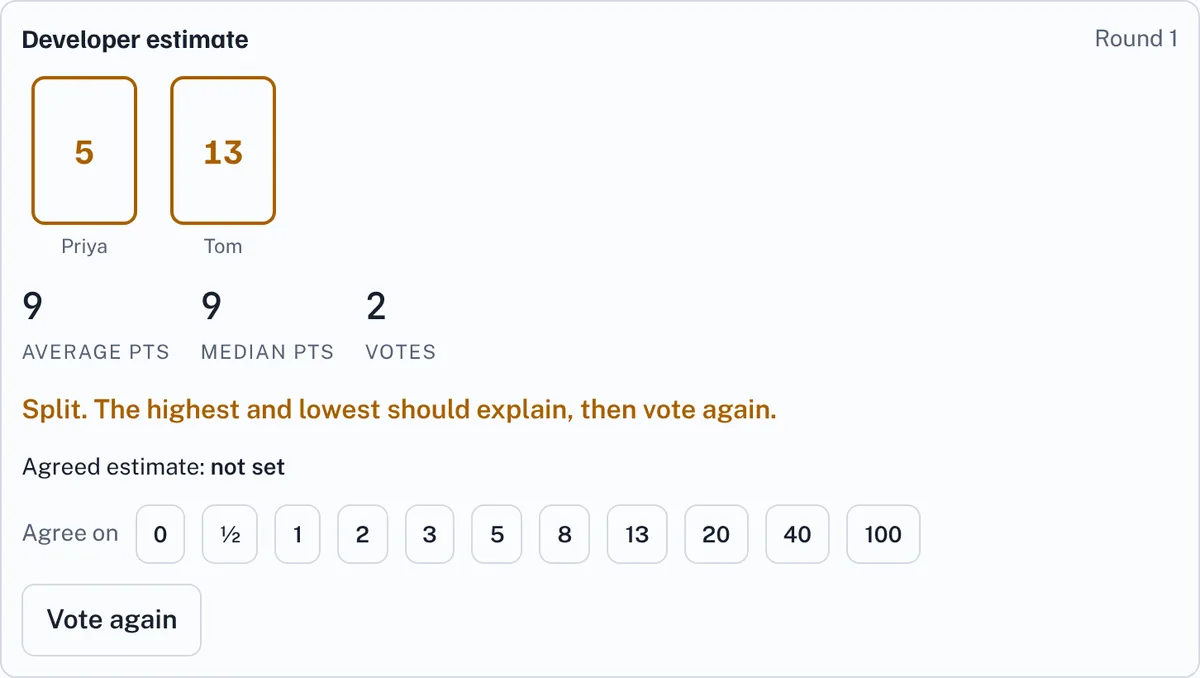
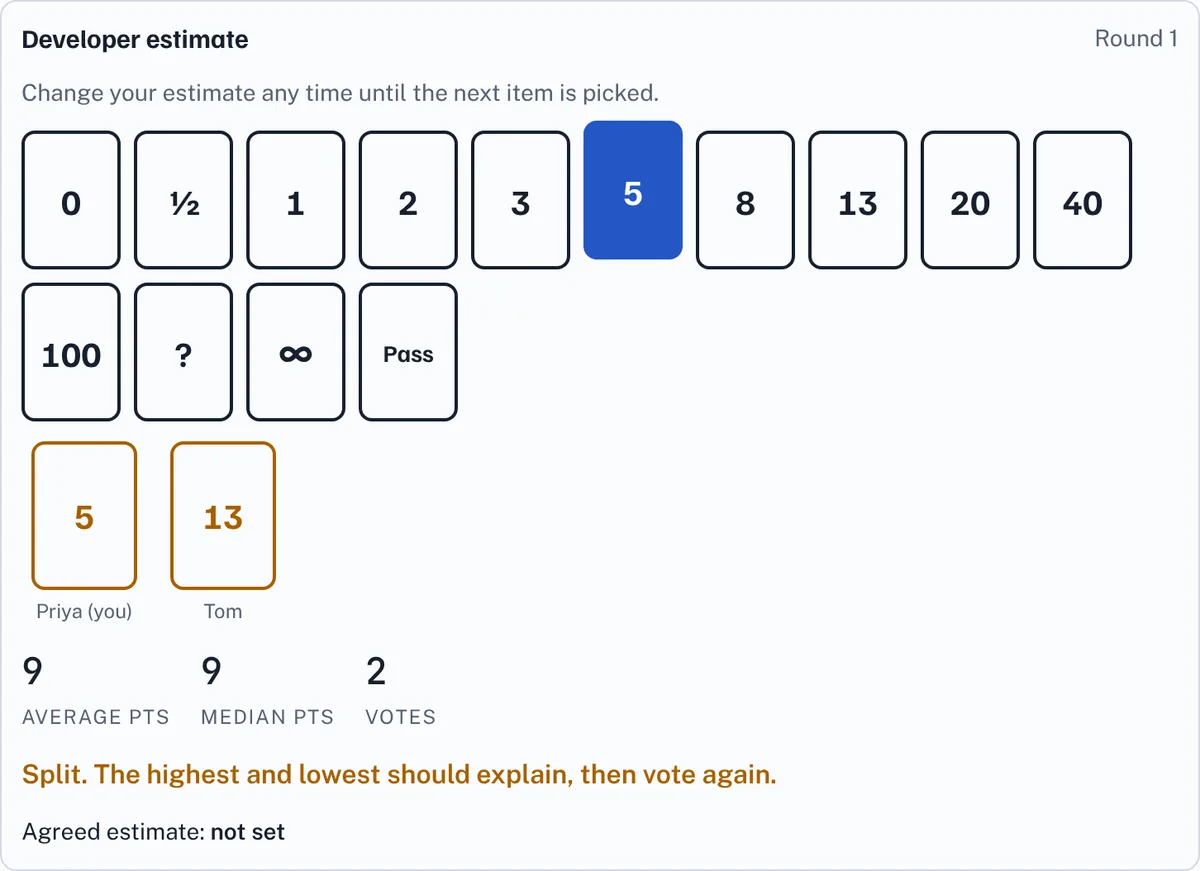
After the reveal, everyone sees each card with its owner's name, plus the average and median. If the votes are more than one card apart, EstimateIt marks the result as Split and highlights the highest and lowest cards. Ask those two people to explain their thinking.
If people in a section picked different cards, you also get a message at the top of the page asking you to bring the team to agreement. Only Scrum Masters see it; developers, QA and team members don't. Press Dismiss to close it. It won't come back for that round, but it appears again if a new round still disagrees. A ?, ∞ or Pass card doesn't count as a different card.
- In rooms with rounding switched off, it says Scrum Master to facilitate agreement on higher or lower Story Point value.
- In all other rooms, including Team rooms, it says Scrum Master to facilitate agreement on Story Point value.

Press Vote again to start a new round for that section. The old votes are cleared and everyone picks again.
8Agree the estimate
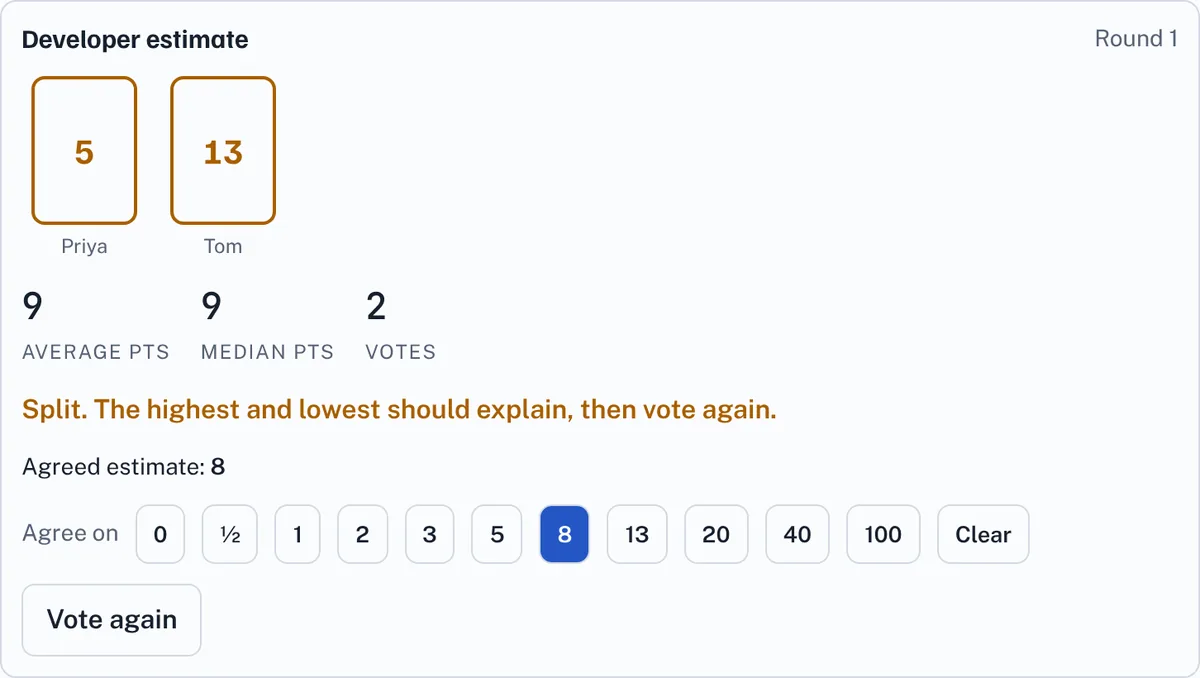
When the team has settled on a size, press that value in the Agree on row. Do this for the developer and the QA estimate separately, or once for the Team estimate in a Team room. Press Clear to undo it. If the room pre-populates median estimates, the median card is already selected with "(median)" beside it: leave it, or press another value to override it.
If you move on without agreeing, EstimateIt sets the agreed estimate for you from the revealed votes: the most common card, or the middle card when there is a tie.
9Move through the items
Next item jumps to the next item that still needs a developer or QA estimate (in a Team room, a team estimate). Previous item goes back to the one you were on before. You can also press Estimate on any row of the table.
10Read the totals and copy them out
The table shows the agreed developer and QA estimate for every item. Total pts is the developer plus QA estimate, rounded to the nearest card once both are agreed, unless rounding is switched off in Settings. Only story points are added up. T-shirt sizes are shown but never turned into points.
When you are done, press Copy summary for a plain-text list to paste into Jira, Confluence or a chat, or Copy as CSV to paste into a spreadsheet. In a Team room both show one Team value per item.
Rounding switched off: Total pts is exactly Developer + QA, which can be a number that isn't a card, such as 11 or 1.5.
Team rooms: the table has just one Team column with the agreed team estimate, and the total at the bottom adds them up. There is no Total pts or Children dev / QA column.
11Good to know
- Rooms are deleted after two weeks without use, so copy the summary before you finish.
- If you're logged in when you run a room, it's saved under Past sessions on Your account: when it started and ended, and every item with an agreed estimate, its Jira link and the estimates. It stays there after the room is deleted, until you delete it. Press Leave room when you finish, so the last estimates are saved.
- Once the story points are agreed, logged-in people can turn the plan into money with the Cost Estimator (under Apps in the menu once the administrator has given you access). Add a row for each resource with their role, FTE and estimated working days, and it works out each row's cost from the role's day rate and the project total. Your estimates are saved with your account.
- Names and roles are fixed once someone joins. To change them, that person leaves the room and joins again before voting.
- The Scrum Master runs the room and does not vote.
- Separate Developer and QA estimates, or one team estimate, is fixed when the room is started. Rounding and the median can be changed later with Change room settings.
- To hand the room to someone else, press Hand over facilitator next to your name on the Facilitator line, pick a person who is in the room now, then press Make name the facilitator. They get the controls within a couple of seconds, with a note saying you made them the facilitator, and you carry on as an ordinary participant with your role. The room gets a new host link at the handover, so any host link you copied earlier stops working. They can hand it back the same way.
For developers, QA and team members
1Join the room
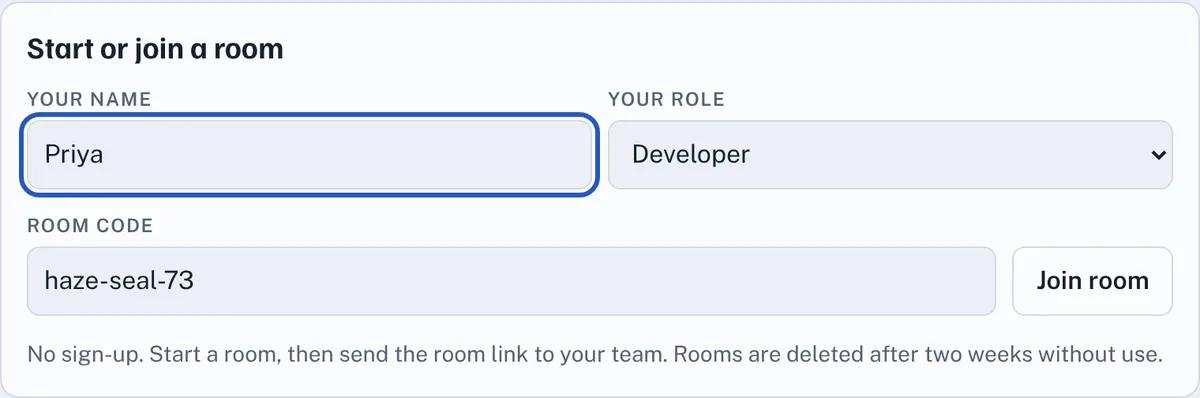
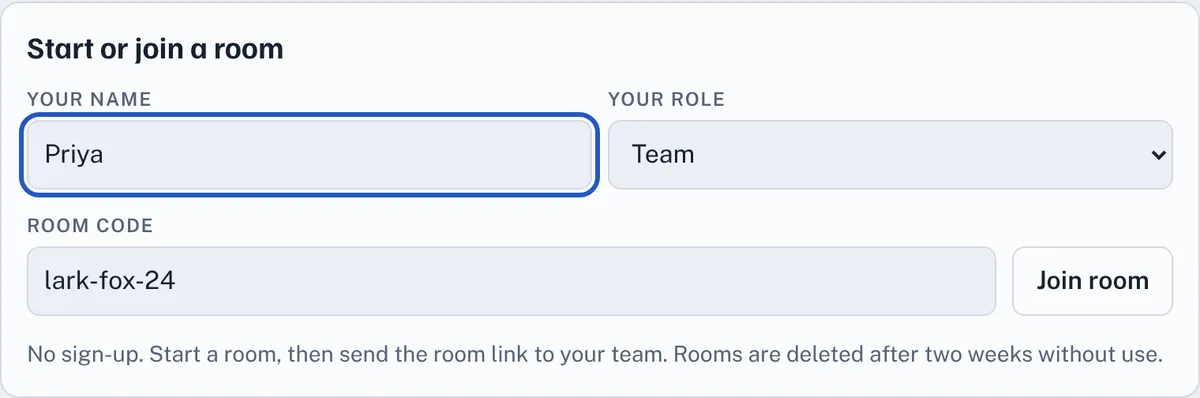
Open the room link your Scrum Master sent. Type your name, choose Developer or QA, and press Join room. If the room is set up for one team estimate, the roles are Team and Scrum Master instead, so choose Team. The room link offers the right roles for that room, whatever your own settings say. Your name and role are fixed once you are in. To change them, press Leave room and join again before you vote.
2Pick your card
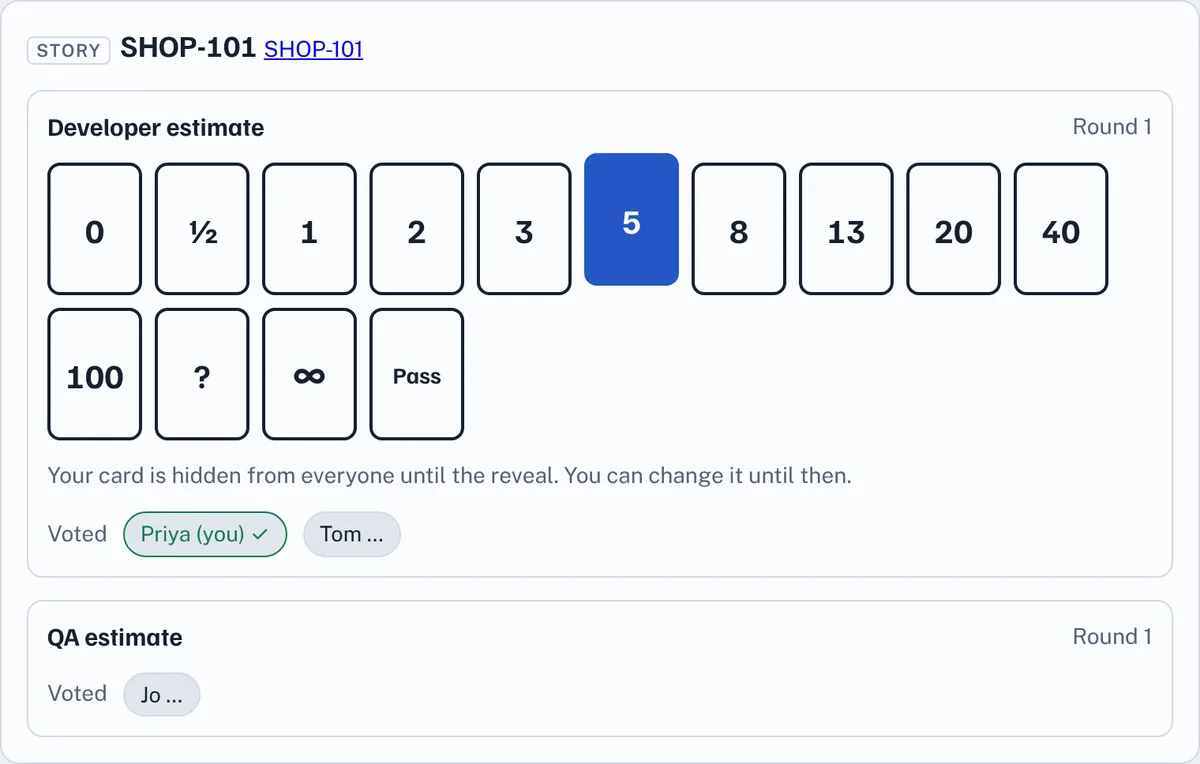
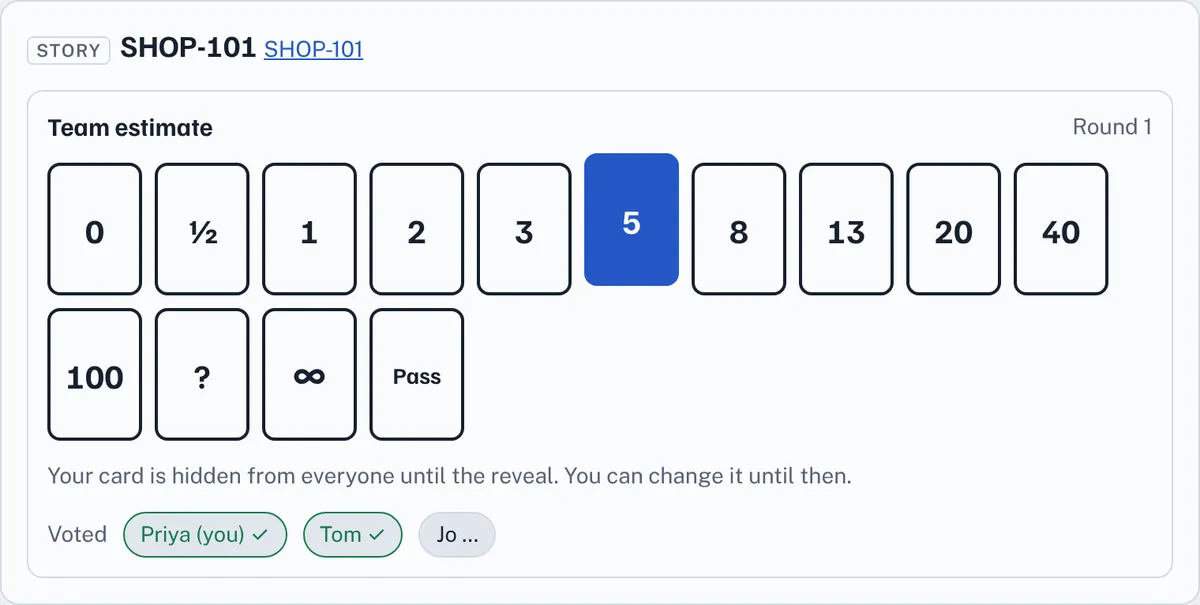
When the Scrum Master picks an item, a row of cards appears in your section: Developer estimate for developers, QA estimate for QA, or Team estimate for everyone in a Team room. Click a card to vote. It turns blue, and your name gets a tick so the team knows you have voted.
Nobody can see your card until the Scrum Master reveals the votes, and you can change it as often as you like until then. Click the Jira key next to the item title to open the story in Jira.
3After the reveal
Everyone's cards appear with names, the average and the median. If the result is marked Split, the people with the highest and lowest cards explain their reasoning, and the Scrum Master may ask for another round.
4What the cards mean
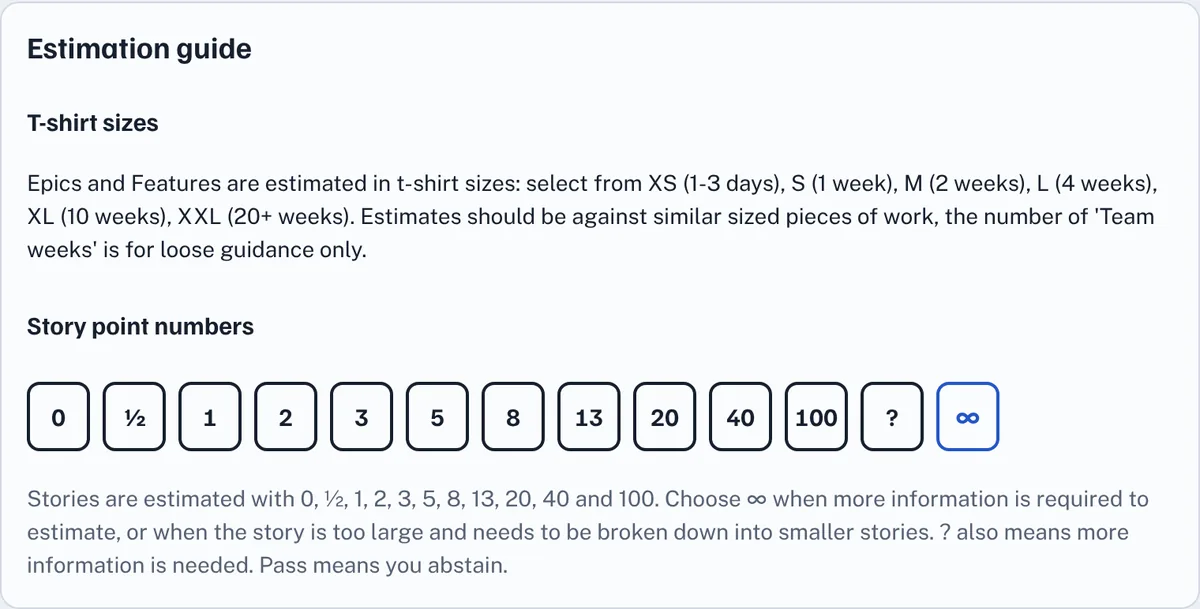
- Numbers (0, ½, 1, 2, 3, 5, 8, 13, 20, 40, 100) are story points, used for stories.
- T-shirt sizes (XS to XXL) are used for features and epics. They are compared with similar-sized work and are never turned into points.
- ? means you need more information before you can estimate.
- ∞ means the item is too big, or too unclear, and should be broken down.
- Pass means you are not voting on this item.
The ?, ∞ and Pass cards are never counted in averages or totals. The Estimation guide at the bottom of the room explains the sizes.
5Good to know
- Each browser tab counts as a separate person, so open the room in only one tab.
- Your own settings only change rooms that you start yourself. When you join someone else's room, you get that room's settings.
- If you reload the page, the same tab rejoins the room by itself.
- The facilitator can hand the room over to you. If they do, you'll see a note saying so, and the facilitator's buttons appear for you. You can hand it back with Hand over facilitator on the Facilitator line.
- You don't need an account, and EstimateIt never sees your Jira sign-in.
- If you're logged in when you join, the session is saved for you under Past sessions on Your account, with every item's agreed estimate and Jira link. Only the agreed estimates are kept, not anyone's name or vote. Press Leave room when you finish, so the last estimates are saved.
Ready? Start or join a room.
Glossary
The words used in a planning poker room, A to Z. For more estimating terms, such as velocity and spikes, see the planning poker glossary.
- ?, ∞ and Pass
- ? means you need more information, ∞ that the item is too big or unclear and should be broken down, and Pass that you are not voting on this item. None of them is counted in averages or totals.
- Agreed estimate
- The size the team settles on for an item, chosen by the Scrum Master in the Agree on row. If nobody agrees one, EstimateIt uses the most common card.
- Average
- The mean of the number cards played in a section after the reveal.
- Copy summary and Copy as CSV
- Copy the items and their agreed estimates as plain text (for Jira, Confluence or a chat) or as a table for a spreadsheet.
- Developer estimate and QA estimate
- The two separate sections developers and QA vote in, unless the room has one Team estimate. Each gets its own agreed estimate.
- Epic, Feature and Story
- The Type of an item. Stories are usually sized in story points; features and epics are bigger and usually sized in T-shirt sizes.
- Facilitator
- The person running the room, normally the Scrum Master. They add items, reveal votes and agree estimates, and can hand the room to someone else with Hand over facilitator.
- Host link
- A private link that lets the facilitator run the room from another device or browser. Anyone with it can control the room, so keep it to yourself.
- Item
- One thing to estimate: a story, feature or epic, usually named by its Jira key, such as SHOP-101.
- Items and totals
- The table of every item in the room with its agreed estimates and the totals.
- Jira key
- The short name of a Jira issue, such as SHOP-101. In a room it is a link that opens the issue in Jira; EstimateIt never reads from or writes to Jira.
- Median
- The middle card played after the reveal. With Pre-populate median estimates on, the agreed estimate starts as the card closest to the median.
- Past sessions
- Rooms you ran or joined while logged in, kept on Your account with every agreed estimate and Jira link.
- Reveal
- Showing everyone's cards at once. Until then nobody can see anyone else's card, only a tick to say they have voted.
- Room
- One estimating session, with its own room code and link. A room is deleted after two weeks without use.
- Room code and room link
- The code that names a room, and the link that opens it with the code filled in. Send the room link to your team.
- Room settings
- Whether Developer and QA vote separately, whether Total pts is rounded to a card, and whether median estimates are pre-populated. Each room keeps the settings it was started with.
- Rounding
- Unless it is switched off, a Total pts that isn't a card value is rounded to the nearest card, with ties going up, so 8 + 3 = 11 becomes 13.
- Scrum Master
- The role that starts and runs a room. The Scrum Master doesn't vote.
- Split
- A result where the votes are more than one card apart. The people with the highest and lowest cards explain their thinking.
- Story points
- A relative size for a piece of work, taking in effort, complexity and risk, not hours. See story points explained.
- T-shirt sizes
- XS to XXL, used for features and epics. They are compared with similar work and never turned into points.
- Team estimate and Team room
- A room where everyone votes together in one Team section, chosen by unticking Separate Developer and QA estimates.
- Total pts
- An item's Developer estimate plus its QA estimate, rounded to a card value unless rounding is switched off.
- Vote again
- Clears a section's votes and starts a new round for the same item.
Cookie policy · Cookie settings · Accessibility · EstimateIt is an independent tool and is not affiliated with Atlassian or Jira. · Version 1.23.0