Your account guide
Open the person icon at the top right and choose Your account. Changing your password or email address asks for your current password, and a code from your authenticator app too if two-step login is on.
1Your name
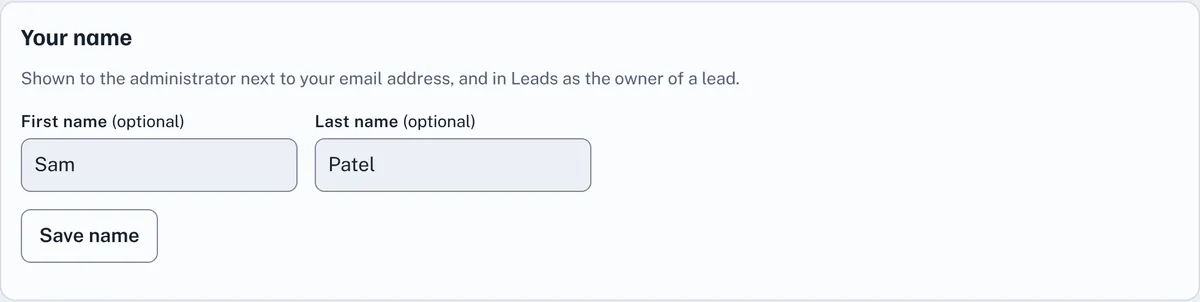
Under Your name, type your First name and Last name and press Save name. Your name is shown to the administrator next to your email address, and in Leads as the owner of a lead. Both are optional; without them, your email address is shown instead.
2Change your password
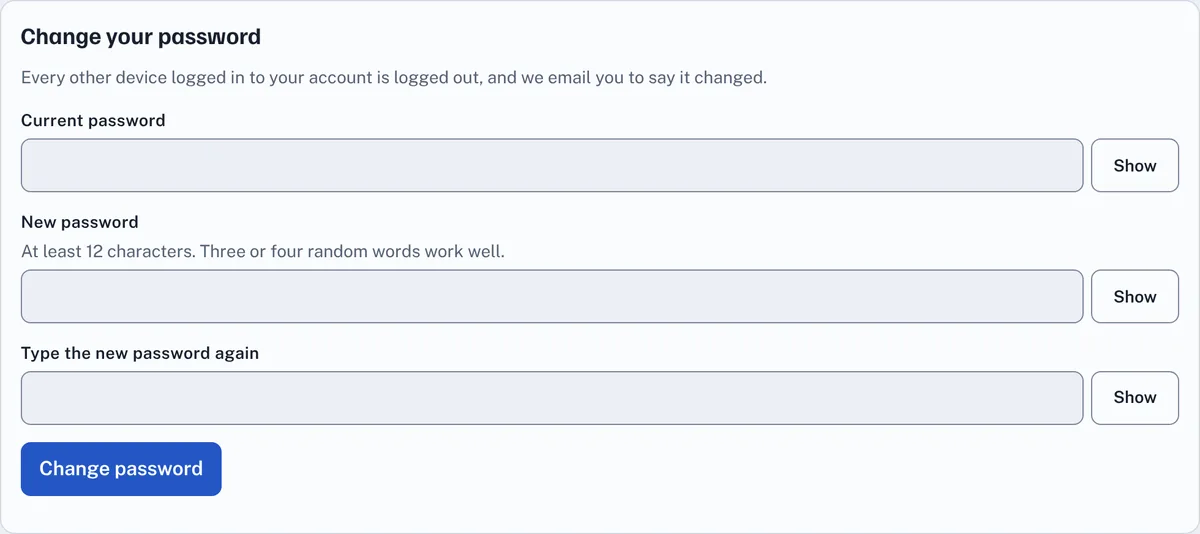
Under Change your password, type your current password, then the new one twice, and press Change password. Use at least 12 characters; three or four random words work well. Common passwords and ones that have appeared in a data breach aren't accepted. You stay logged in on this device, every other device is logged out, and we email you to say the password changed.
3Change your email address
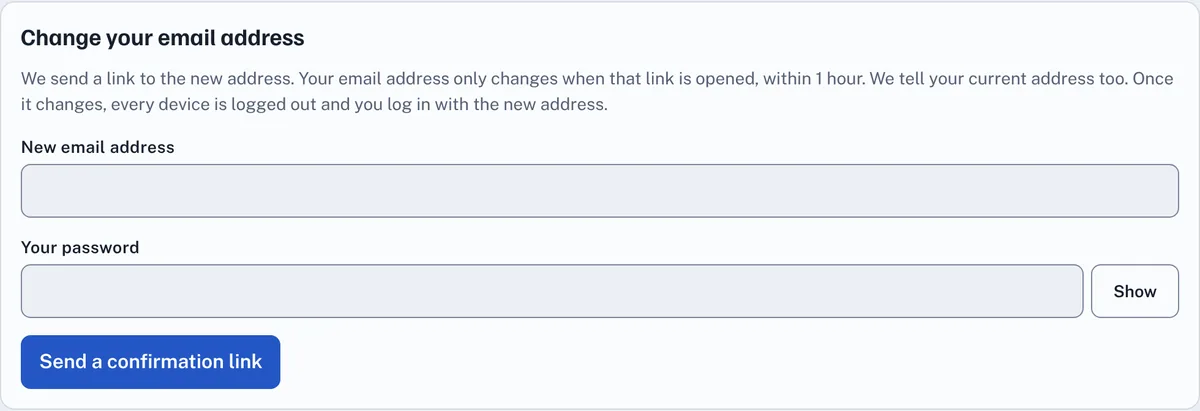
Under Change your email address, type the new address and your password, and press Send a confirmation link. We email a link to the new address, and tell your current address that a change was asked for. Nothing changes until the link is opened, within 1 hour; until then you can press Cancel the change. Once it's opened, every device is logged out and you log in with the new address. Your estimates, Past sessions, access and reports stay with your account.
4For the administrator: add people without emailing them
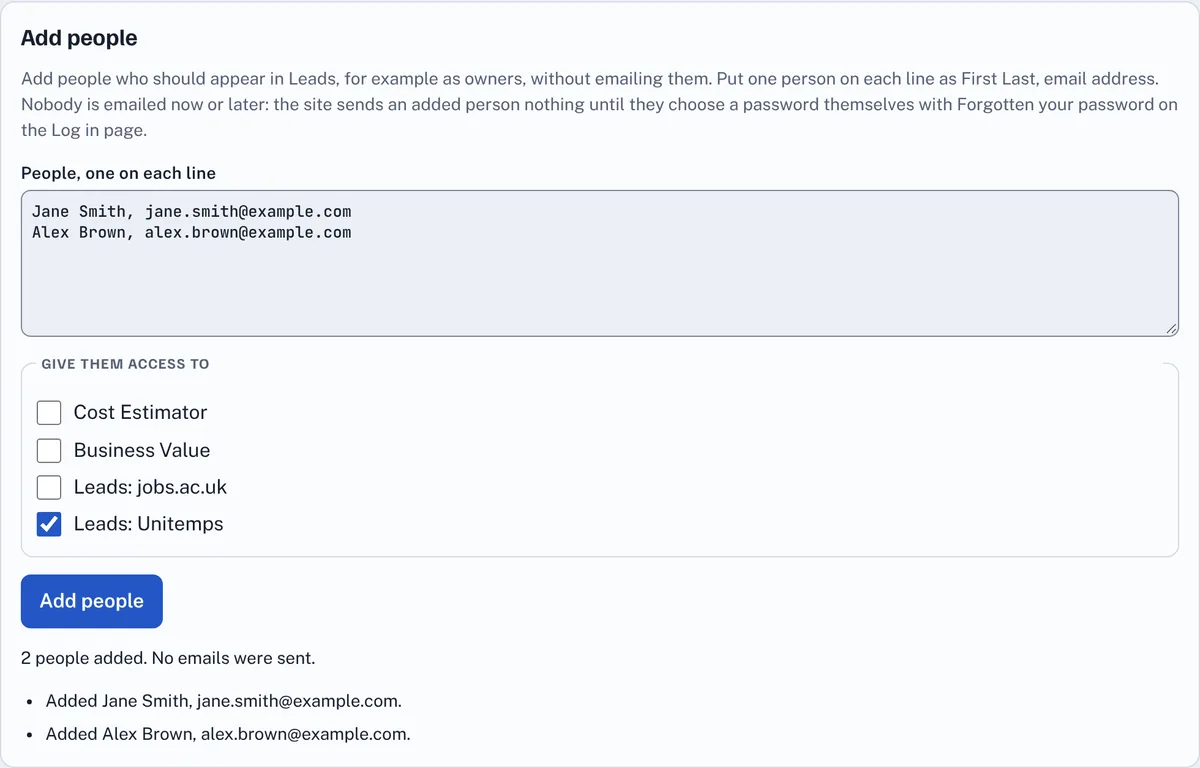
To add a team before they use EstimateIt, for example so leads can be given to them, use Add people on Your account. Put one person on each line as First Last, email address, tick the areas they should have, such as Leads: Unitemps, and press Add people.
Nobody added this way is emailed, now or later: not when they're added, given access, given a lead, sent the morning follow-up email, or deleted. Under Everyone's access they show as "added, not joined yet". They join when they choose a password themselves with Forgotten your password? on the Log in page, using the email address you added; from then on they get emails like everyone else.
Changing many people at once. Everyone's access, Access requests and Accounts have a tick box on each row, and one at the top to tick every row. Tick the people, choose what to do from the list above the table (for example Give Leads: Unitemps, Grant or Delete), and press Apply to ticked. Each person is changed just as their own button would, so giving or taking away an area emails them as usual (people added who haven't joined get nothing), and Delete asks you to confirm first.
5For the administrator: the Accounts table
Every account is listed under Accounts, with its name and email address, its status, when it last logged in, and a button for each thing you can do to it.
- Search accounts: type any part of a name, email address or status to narrow the table. Tick Only accounts not logged in for 90 days to see the ones nobody is using.
- Resend emails: open it for the list of emails that account can be sent again, one button each, such as Resend verification email, Resend "account is ready", Send password reset link or Resend "Cost Estimator is ready". Each one asks you first, because pressing it emails a real person. Only the emails that still apply are offered, and nobody added with Add people who hasn't chosen a password is ever emailed.
- Systems: open it to switch one system off for that person, for example Disable Cost Estimator or Disable Leads: Unitemps. They can't open it, and they're told by email, but nothing is taken away: their access, their roles and their work are kept, and Re-enable gives it all straight back. The Leads books are a SysAdmin's to switch off; the other areas are the administrator's.
- Disable account: the whole account. They're logged out everywhere and can't log in until you press Re-enable account. Nothing is deleted. Use this for someone who has left, instead of Delete, which removes the account completely and can't be undone.
- Turn off two-step login: for someone who has lost both their phone and their backup codes. They keep their password, are logged out, and are told by email. Do it only when you are sure who you are talking to.
Everything on this list is written to the activity log below, with your name against it.
6The activity log
The Activity log says who did what, and when, in three columns: User, Action and When. It covers changes to accounts and businesses, everything done in Leads (adding and changing leads, notes, follow-ups, logged calls, imports and deletions), and whatever the site did by itself, such as an email going out or the morning follow-up emails running. Those say System in the User column.
- The newest 50 entries are shown. The log keeps 12 months, and older entries are deleted by themselves.
- Search the log is one box across all three columns at once, so you can type a name, part of an action, or a date such as 26/10/2026 or 26/10. It starts narrowing at three characters and keeps narrowing as you type; a space between words means they must all appear.
- When more than 50 entries match, press Show all N matching entries to see every one. The search looks through the whole 12 months, not only the 50 on screen.
- The administrator and SysAdmins see everything. A Business admin sees only what was done in the Leads books they look after, and nobody else sees the log at all.
7For a Business admin: your team
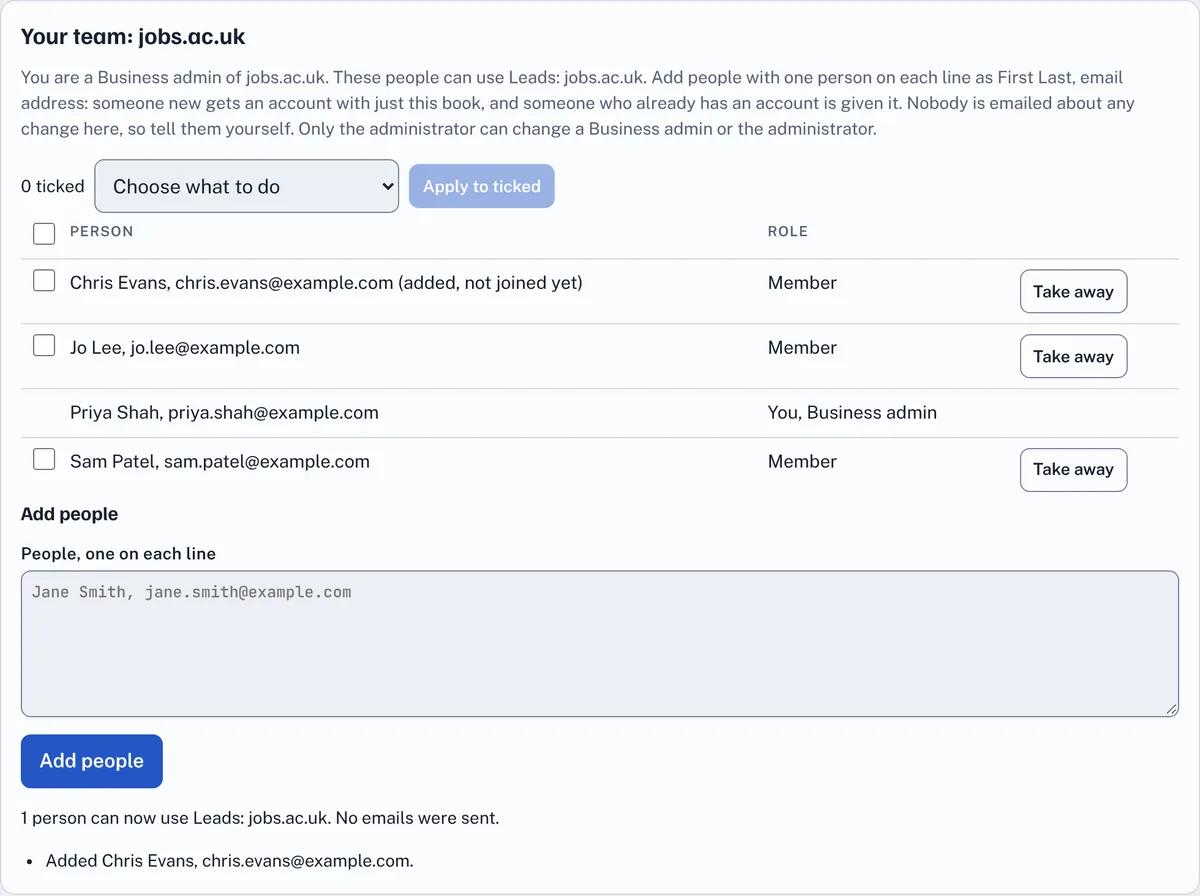
The administrator can make someone with a Leads book its Business admin. A Business admin sees Your team on Your account, listing everyone who can use that book, and can:
- Add people: put one person on each line as First Last, email address and press Add people. Someone new gets an account with just this book, added in the same way as the administrator's Add people, so they aren't emailed until they choose a password with Forgotten your password?. Someone who already has an account is given the book.
- Take away the book from someone who no longer needs it. Their leads stay in the book.
- To take the book from several people at once, tick them, choose Take away in the list above the table, and press Apply to ticked.
Nobody is emailed about these changes, so tell the people yourself. A Business admin needs Two-step login turned on, further down Your account, and can't change another Business admin, the administrator, the other business's book or any other area.
8For a SysAdmin: Leads businesses
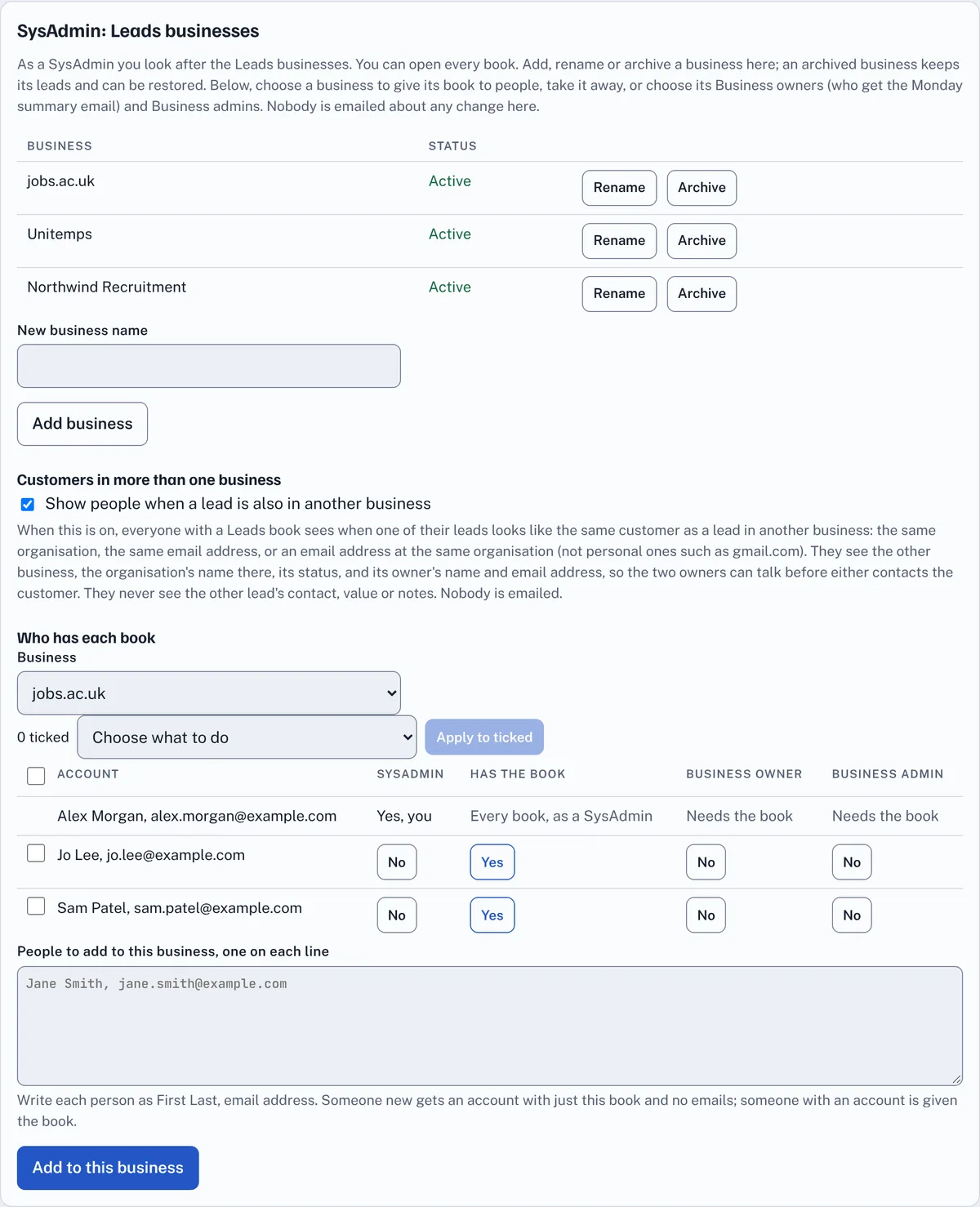
A SysAdmin looks after the Leads businesses, and can open every business's book. The administrator is always a SysAdmin, and any SysAdmin can make someone else one. With Two-step login turned on, a SysAdmin sees SysAdmin: Leads businesses on Your account, where they can:
- Add a business: type its name and press Add business. It gets its own empty book, Leads: name, which appears in the menu for the people given it.
- Rename a business. Its book and leads stay the same.
- Archive a business (press twice). Nobody can open its book, and it leaves the menus and emails, but its leads and the people who had it are kept. Restore brings it all back.
- Customers in more than one business: tick Show people when a lead is also in another business to switch on the check across businesses (see Add a lead). Untick it to switch it off.
- Under Who has each book, choose a business, then press Yes or No to give its book or take it away, choose its Business owners and Business admins, or make someone a SysAdmin. Add new people to that business in the box below the table. To change several people at once, tick them (or tick the box at the top of the table for everyone), choose what to do from the list above the table, such as Give Leads: Unitemps or Make Business owner of Unitemps, and press Apply to ticked. Anyone who can't be changed is listed with the reason.
Nobody is emailed about these changes. Approving and deleting accounts, and the other areas such as the Cost Estimator, stay with the administrator.
9Good to know
- If you get an email about a change you didn't make, change your password straight away (or use Forgotten your password? on the Log in page) and tell us. Changing the password also cancels a change of email address that's waiting.
- The administrator's email address is set on the server, so it can't be changed on Your account.
Glossary
The words used on Your account, A to Z.
- Access requests
- The administrator's list of people asking for an area, with Grant and Refuse.
- Activity log
- Who did what, and when, for the administrator, SysAdmins and Business admins. It keeps 12 months, shows the newest 50, and has one search box across the user, the action and the time. System is the site itself, for instance an email going out.
- Added, not joined yet
- Someone added with Add people who hasn't chosen a password yet. They aren't emailed until they do.
- Administrator
- The person who runs EstimateIt. They approve and delete accounts and decide who has each area.
- Apply to ticked
- Does the action chosen above a table to every row you have ticked, as if you had pressed each row's own button.
- Archive and Restore
- Archiving a business closes its book and takes it off the menus and emails, keeping its leads. Restoring brings it back.
- Area
- A part of EstimateIt that needs access: the Cost Estimator, Business Value or a Leads book.
- Backup codes
- Ten one-time codes for logging in if you lose your authenticator app. Keep them somewhere safe.
- Disable and Re-enable
- Stops someone using the whole account, or one system, without taking anything away. Nothing is deleted, and Re-enable gives it all back. Delete is the one that can't be undone.
- Business admin
- Someone who can add people to their business's Leads book, or take it away, under Your team.
- Business owner
- Someone who gets the Monday summary email about their business's Leads book.
- Confirmation link
- The link emailed to a new email address. Nothing changes until it is opened, within 1 hour.
- Everyone's access
- The administrator's table of every account, with a column for each area.
- Last login
- When that account last logged in, in the Accounts table. Tick the 90-day box to see the accounts nobody is using.
- Request access
- Asks the administrator for an area. You get an email when they decide.
- Resend emails
- A button for each email an account can be sent again, such as the verification link or a password reset link. Each one asks before it emails anybody.
- SysAdmin
- Someone who looks after the Leads businesses: adding, renaming and archiving them, and choosing who has each book.
- System
- The User shown in the activity log for something the site did by itself, with nobody pressing a button: an email being sent, or the morning follow-up emails running.
- Two-step login
- Logging in with your password and a code from an authenticator app on your phone. Business admins and SysAdmins must have it on.
- Your access
- The list on Your account of the areas you have, and the ones you can ask for.
- Your team
- What a Business admin sees on Your account: everyone who can use their business's book.
Cookie policy · Cookie settings · Accessibility · EstimateIt is an independent tool and is not affiliated with Atlassian or Jira. · Version 1.23.0