Leads guide
A simple shared list of sales leads, with follow-up dates, notes and a morning reminder email. Each business has its own lead book, such as Leads: jobs.ac.uk and Leads: Unitemps, and a SysAdmin can add more. Everyone given a book sees and edits the same leads, and nobody sees another business's book unless they are given it too.
1Get access to your business's book
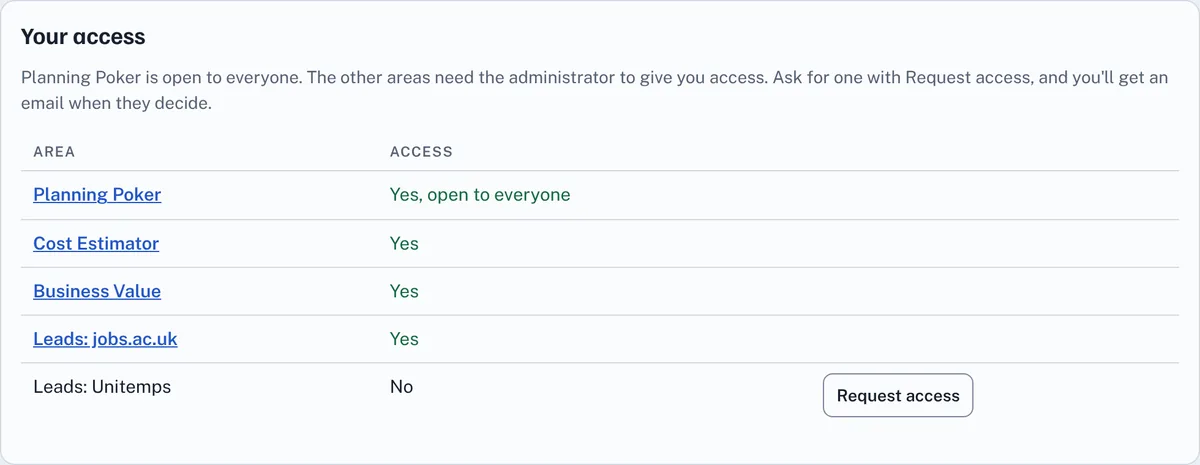
On Your account, under Your access, press Request access next to Leads: jobs.ac.uk or Leads: Unitemps. You'll get an email when the administrator decides. Your business may also have a Business admin who can give you the book (see Your team). Then open Menu, then Apps, and choose the book.
2Add a lead
Press Add lead. Only the Organisation is required. You can also add the contact's name, email and phone, where the lead came from (Source), its Estimated value in whole pounds, its Stage, its Sentiment (how keen they seem: Cold, Warm or Hot), its Owner and the Next follow-up date. A new lead starts owned by you; choose Nobody or a colleague who has the book instead if you like. Press Save lead. When you open a lead later to change it, the button says Update lead. To add many leads at once, see Upload leads from a CSV file.
Under the details, Other contacts holds up to 10 more people at the same organisation, such as a manager or someone in finance. Press Add another contact and fill in their Name, Job title, Email and Phone; each one needs a name or an email address. Remove takes a row away. The changes are kept when you press Save lead or Update lead. Search finds a lead by any of its contacts, and emails to or from any of them are added to the lead's notes.
The stages are New, Contacted, Qualified and Proposal sent, which are open, then Won or Lost, which close the lead.
Next to Next follow-up, +1 day, +1 week and Next Monday fill in the date for you, counted from today.
If the organisation or email address you type is already in the book, Already in this book appears with the lead it looks like, and a button to open it. Names are compared without capitals, punctuation, a leading "The" or a closing "Ltd", so The Acme Trust and acme trust ltd match. You can still save the new lead if it's a different customer.
If a SysAdmin has switched on the check across businesses, Also a lead in another business appears when another business has a lead for what looks like the same customer: the same organisation, the same email address, or an email address at the same organisation (not personal ones such as gmail.com). It shows that business, the organisation's name there, its status, and its owner's name and email address, so you can talk to them before contacting the customer. You never see that lead's contact, value or notes. Leads like this have an Also in tag in the table.

3Keep on top of your leads
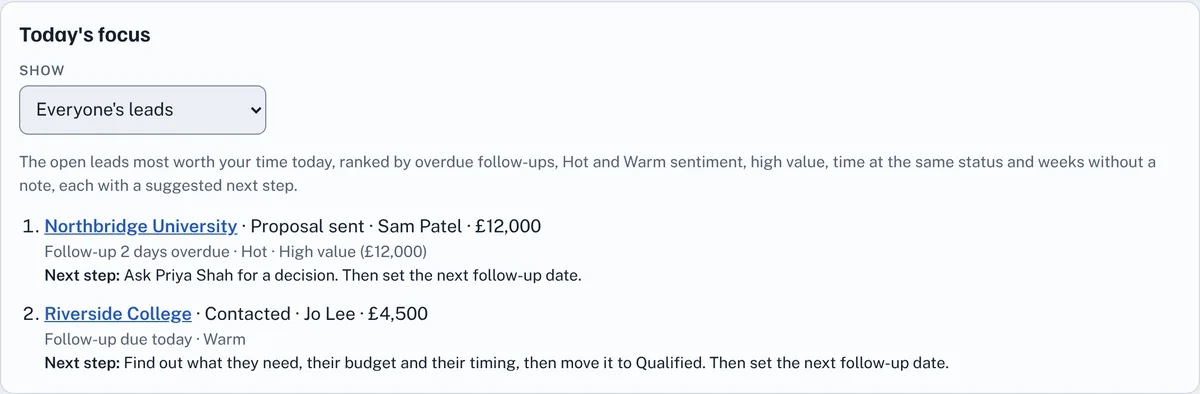
- Today's focus at the top lists up to 10 open leads most worth your time today, best first. Each shows why it's there (for example Follow-up 3 days overdue, Hot, High value, Proposal sent 16 days ago with no decision or No notes for 25 days) and a suggested Next step. Show switches between My leads and Everyone's leads. It's worked out from the leads in your book by simple rules, and nothing is sent anywhere else.
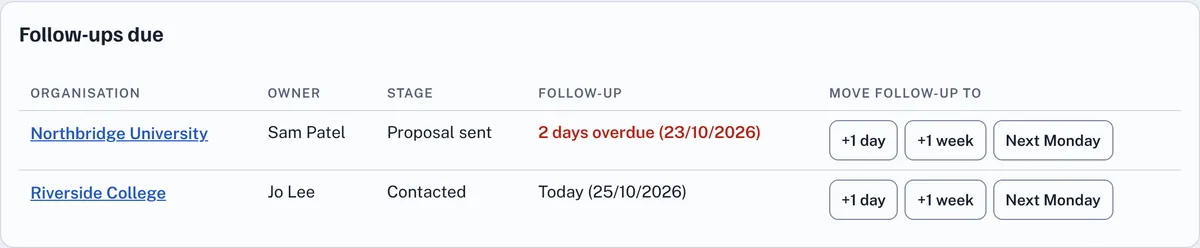
- Follow-ups due lists every open lead whose follow-up date is today or earlier, oldest first, with how many days overdue it is. +1 day, +1 week and Next Monday on each row move its follow-up straight away, without opening the lead.
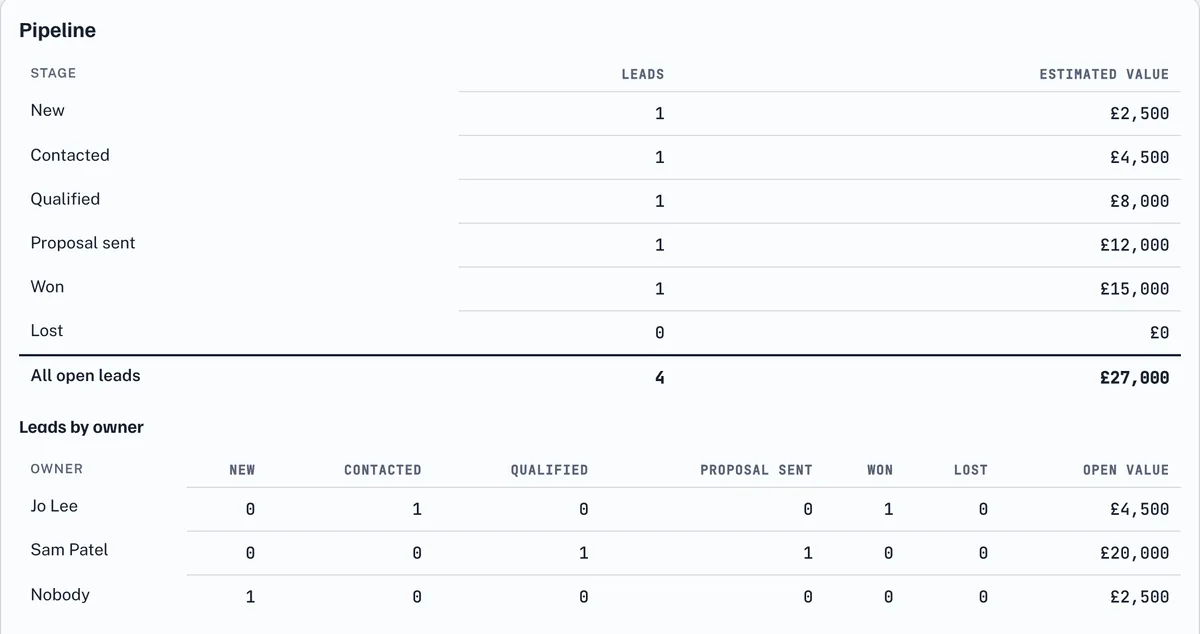
- Pipeline counts the leads at each stage and adds up their estimated value, with a total for all open leads.
- Leads by owner, under the pipeline, shows how many leads each person has at each stage and the value of their open leads. Leads nobody owns are counted under Nobody.
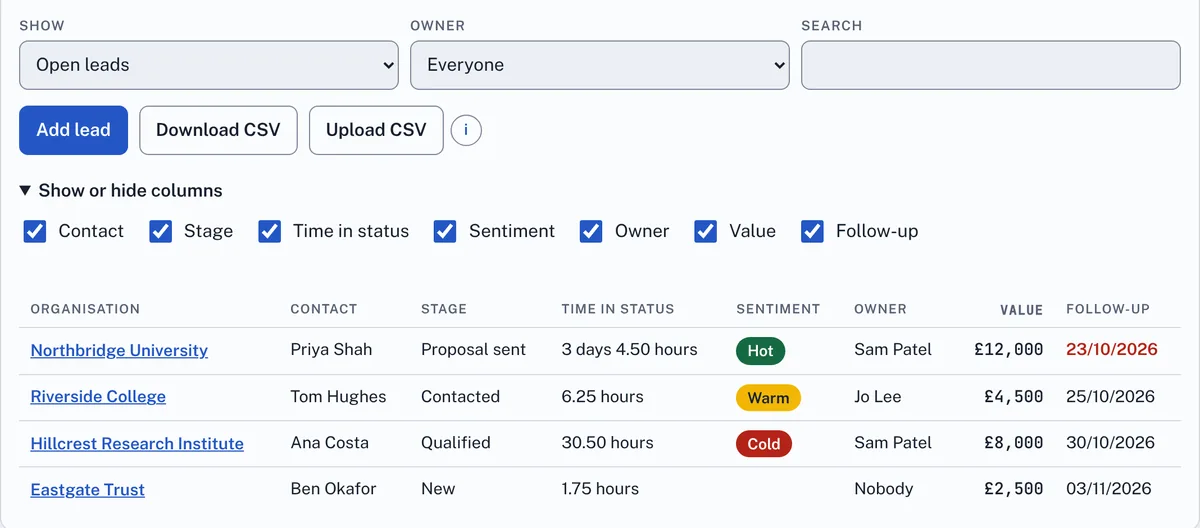
- Show, Owner and Search filter the table. The table is sorted by follow-up date, soonest first.
- Time in status shows how long each lead has been at its current stage, to the nearest quarter of an hour (for example 6.25 hours), and in days and hours from 48 hours on (for example 3 days 4.50 hours). Leads saved before this was added count from the day it was added.
- Sentiment is coloured: Cold red, Warm amber and Hot green.
- Show or hide columns, above the table, lets you choose which columns you see. Organisation always shows. Your choice is remembered in this browser.
- If a colleague saved the same lead while you had it open, you're shown their version and asked to make your changes again, so nobody's work is overwritten.
4Change several leads at once
Each row of the table has a tick box, and the box at the top of that column ticks every lead the table shows. Use Show, Owner and Search first to narrow the table to the leads you want. Then, in the bar above the table:
- Choose what to do: Assign to, Set the next follow-up, Change status or Delete.
- Choose the person, the date, or the new status. A new status needs a reason, which is kept in the notes of every lead it moves, as it is when you change one lead.
- Press Apply to ticked. To delete, press Delete ticked, then press it again to confirm.
A message under the bar says how many leads changed, and how many were already like that. When you assign several leads to someone, they get one email listing them all, not one email for each lead. Only leads the table shows stay ticked, so a change never reaches a lead you can't see. Untick all clears the ticks. You can change up to 500 leads at once.
5Move a lead on, and say why
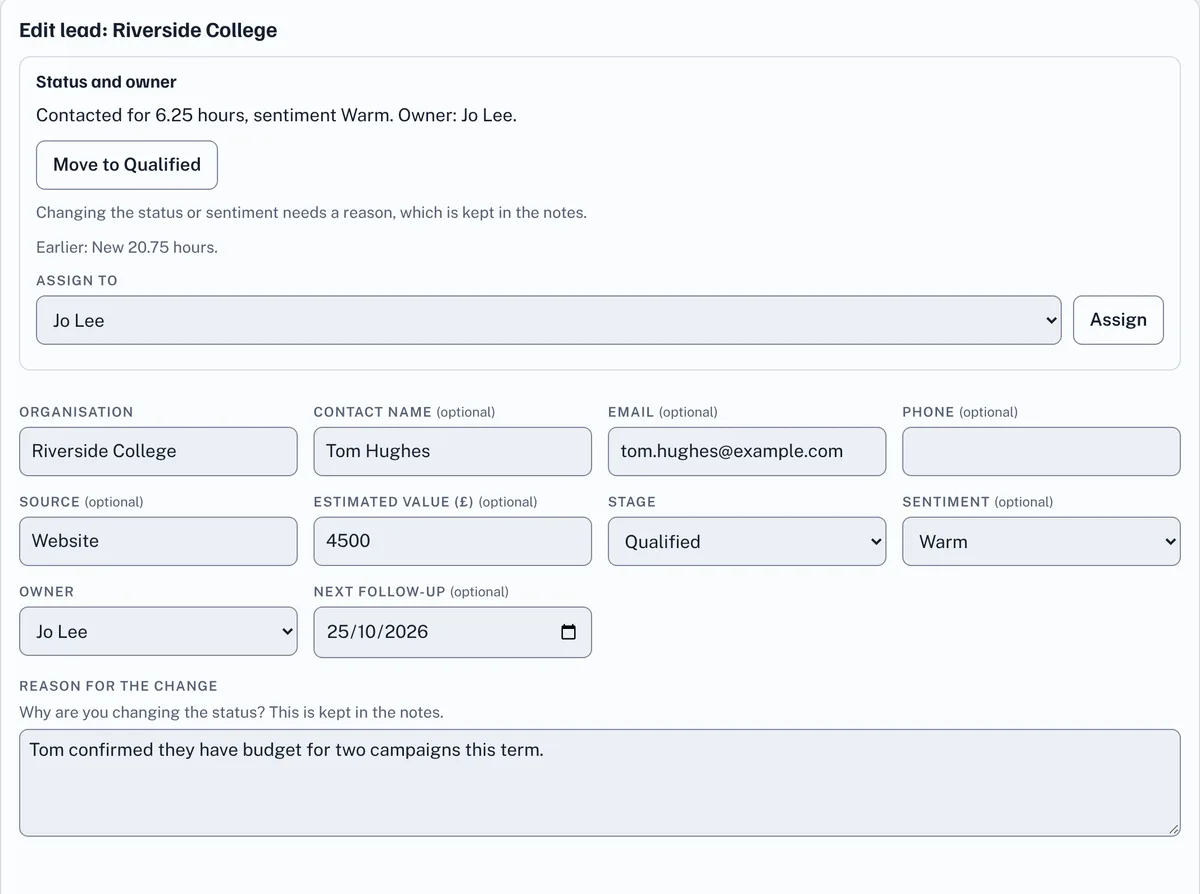
Press an organisation's name to open the lead. Status and owner at the top says what stage it's at and for how long, and the stages it went through before.
- Move to and the next stage (for example Move to Qualified) moves the lead on one step: New, Contacted, Qualified, Proposal sent, then Won. Mark contacted sets it back to Contacted at any point, for example when a lost lead gets in touch again. For Lost, choose it in Stage.
- Whenever you change the stage or the sentiment of a saved lead, a Reason for the change box appears. Say why, for example "Agreed a meeting for next week", then press Update lead. The change and your reason are added to the lead's notes, so everyone can see what happened and when.
- Assign to gives the lead to someone else who has the book. Choose them and press Assign. They get an email to say so, once they have joined EstimateIt.
6Add notes
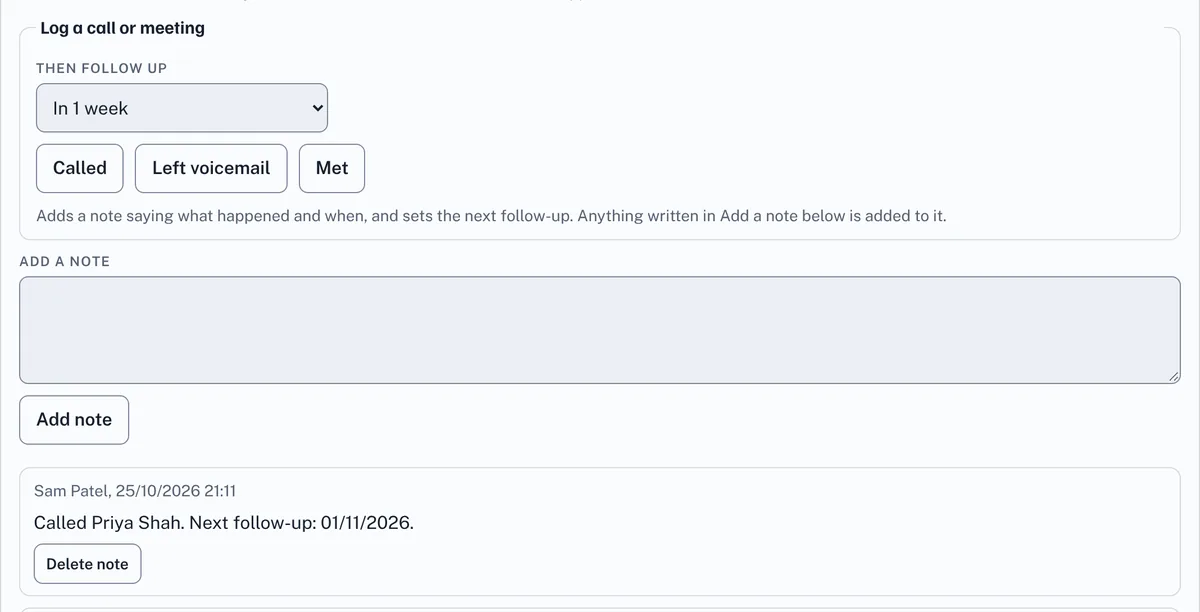
Open a lead, type under Add a note and press Add note, for example after a call. Notes show who wrote them and when, newest first. Only the person who wrote a note (or the administrator) can delete it.
After a call or a meeting, Log a call or meeting does it in one press. Choose when to follow up next under Then follow up (in 1 week unless you choose otherwise), then press Called, Left voicemail or Met. A note such as "Called Priya Shah. Next follow-up: 03/11/2026." is added and the follow-up date is set. Anything you've typed under Add a note is added to the same note. If the lead is still New, press Mark contacted afterwards to move it on.
7Email the contact and add follow-ups to your calendar
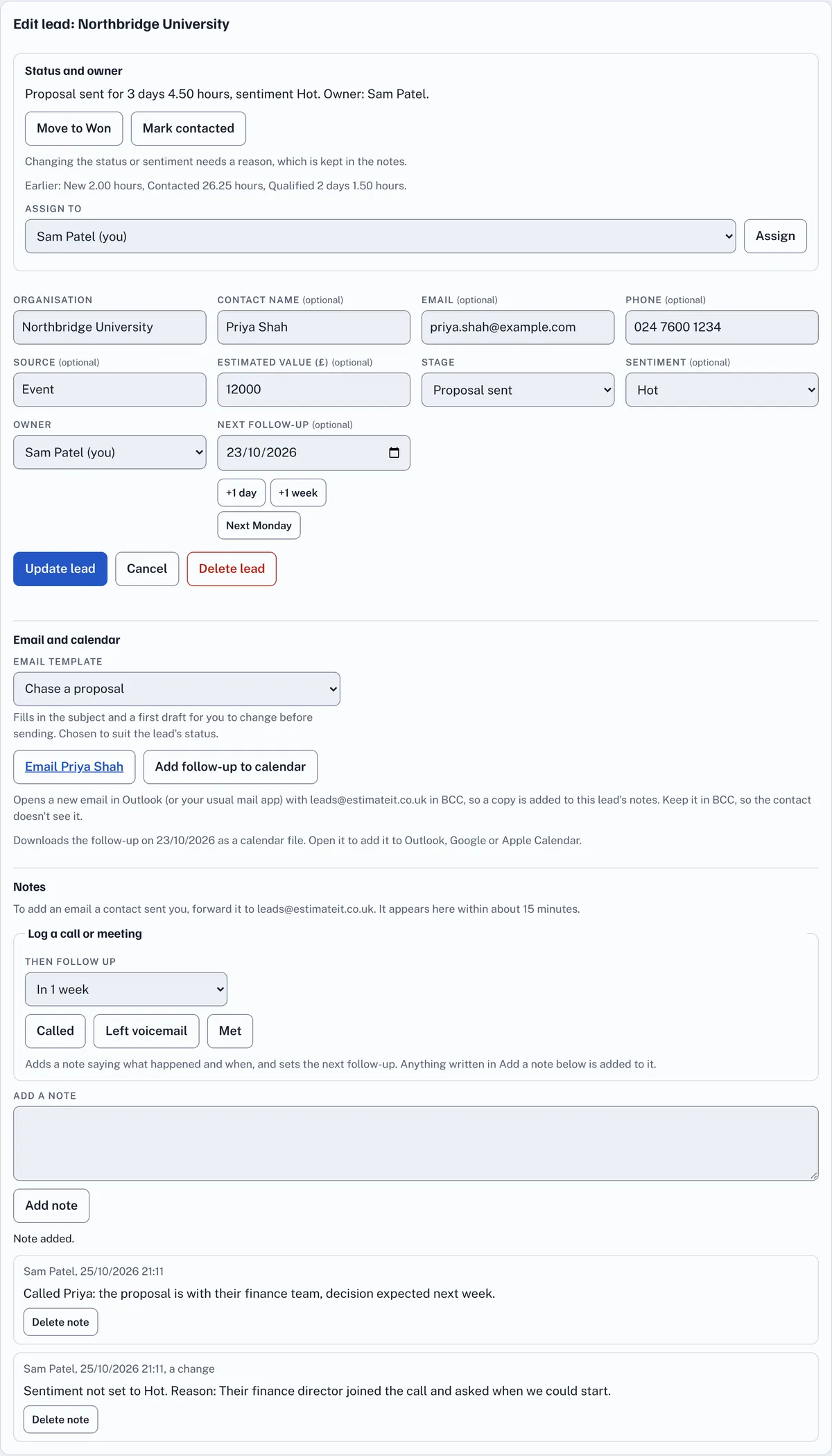
Open a saved lead and look under Email and calendar:
- There's an Email button for the main contact and for each other contact with an email address; an other contact's button shows their job title too. Email and the contact's name opens a new email to them in Outlook, or your usual mail app. When the Leads mailbox is set up, its address is already in BCC, so a copy of your email is added to the lead's notes. Leave it in BCC so the contact doesn't see it.
- Email template, above the Email button, fills in a subject and a first draft for you: First contact, Follow-up after talking, Chase a proposal or Check in. It picks the one that suits the lead's stage, and you can choose another or No template. The draft opens in your mail app for you to change before you send it.
- Add follow-up to calendar downloads the follow-up date as a calendar file. Open it and it's added to Outlook, Google Calendar or Apple Calendar as an all-day reminder. If you change the date later, add it again and delete the old one from your calendar.
Both use the lead as it was last saved, so press Update lead first if you've just added the email address or the date.
8Save emails to a lead
When the Leads mailbox is set up, its address is shown on the lead under the Email button and in Notes. Emails sent to it are added to the right lead within about 15 minutes:
- Emails you send: put the Leads mailbox in BCC (the Email button does this for you). The email is added to every lead with that email address, as its main contact or one of its other contacts.
- Emails a contact sends you: forward the email to the Leads mailbox, with nobody else in To or Cc. It's added to the lead whose address it came from.
The note shows the subject and the start of the email, and says "from an email". Attachments aren't kept. Send from the email address you log in to EstimateIt with: emails from anyone else are ignored. If an email doesn't match any of your leads, you get an email saying so; add the contact's email address to the lead and send or forward it again.
9The morning follow-up email
On weekday mornings you get an email listing your open leads whose follow-up date is today or earlier, with a link to the book. Leads nobody owns go to everyone with the book, so someone picks them up. If nothing is due, there's no email.
10The Monday summary email, for Business owners
The administrator can make some people with a book its Business owners. Every Monday from 09:00 UK time, each Business owner gets an email about the whole book: open leads and their value, leads won and lost in the last 7 days, overdue follow-ups, the pipeline by stage, a table by owner, the mix of Cold, Warm and Hot, the leads that have been at their stage longest, and the overdue follow-ups, with a button to open the book. Being a Business owner gives you nothing else: you see and do the same as everyone with the book.
11Download or delete leads
Download CSV saves the leads the filters show, with each lead's hours at its stage, sentiment, latest note and other contacts, as a file you can open in Excel. To delete a lead, open it and press Delete lead twice. To delete several, see Change several leads at once. Deleting a lead deletes its notes too, for everyone.
12Upload leads from a CSV file
To add many leads at once, for example from Microsoft Dynamics or a spreadsheet, press Upload CSV under the leads table.
- Make a CSV file whose first row is the column names. Organisation is the only column it needs. Press Download template for a file with every column ready to fill in, and open Which columns can the file have? to see what each column may hold. In Excel, use File, Save As and choose CSV.
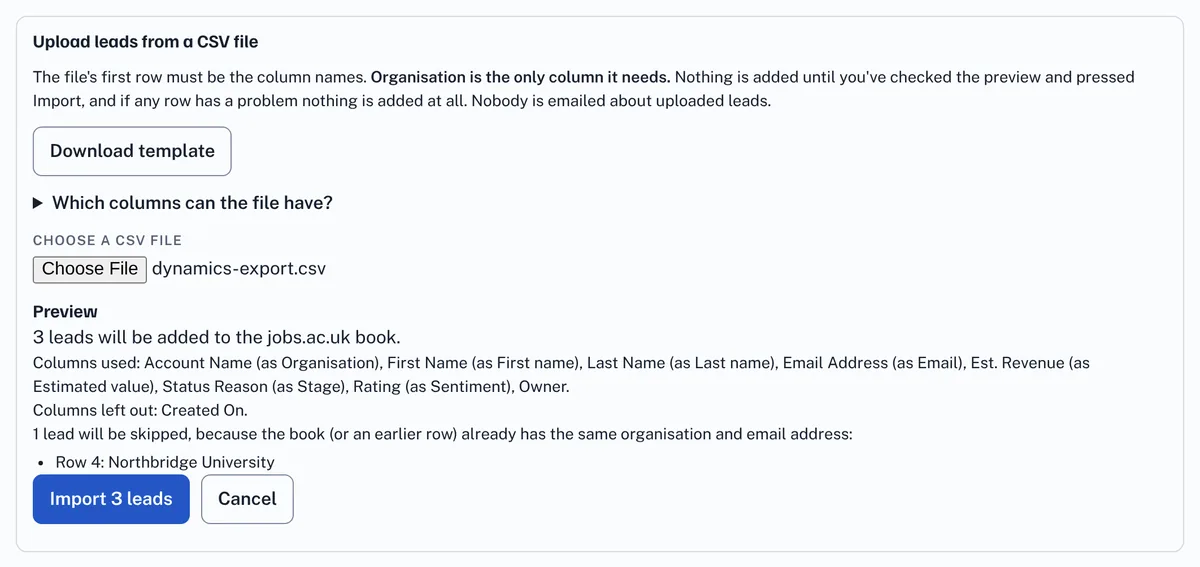
- The column names Dynamics uses are understood, such as Account Name, First Name and Last Name, Email Address, Est. Revenue, Status Reason and Rating. A CSV downloaded from this page can be uploaded again. Other columns are left out.
- Press Choose a CSV file (or Browse) and pick the file. It's checked straight away.
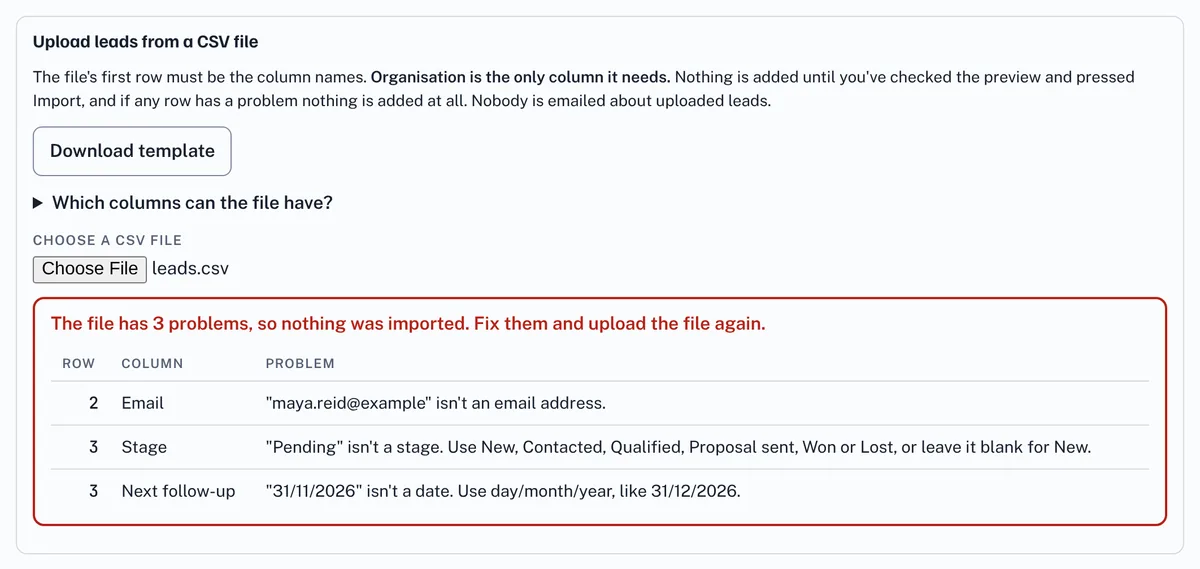
- If anything in the file is wrong, such as a missing organisation, an unknown stage or owner, a date that isn't real or a value that isn't an amount, nothing is added. You see a list of every problem with its row and column, as numbered in Excel. Fix them and choose the file again.
- If the file is good, the Preview says how many leads will be added, which columns were used, and which rows will be skipped because the book already has a lead with the same organisation and email address.
- Press Import to add them, or Cancel. Nobody is emailed about uploaded leads, even their owners.
An owner can be given by name or email address, and must be someone with the book. Dates are day/month/year, like 31/12/2026. One file can hold up to 2,000 leads and 1 MB.
13Good to know
- The leads belong to the business, not to you: deleting your account doesn't delete them, and your colleagues keep them.
- Keep to what's needed for the sale. The contacts are real people who haven't signed up to EstimateIt, so only record work details and business notes about them. Sentiment and reasons are opinions about real people: keep them factual and polite, as the contact could ask to see them. Before uploading a CSV, take out any columns you don't need.
- The owners you can choose are everyone with the book, shown by their first and last name. Set yours on Your account.
- A book can hold up to 2,000 leads, and a lead up to 200 notes.
- Everything done in the book is written to the activity log, saying who did it and when. Your Business admin, the SysAdmins and the administrator can read it; it keeps 12 months.
Glossary
The words used in a Leads book, A to Z.
- Activity log
- The list on Your account of who did what and when. Everything you do in the book goes in it, and your Business admin can read it.
- Already in this book
- A warning when the organisation or email address you type matches a lead already in the book.
- Also in, and Also a lead in another business
- When a SysAdmin has switched it on, a lead that looks like the same customer as a lead in another business shows that business and the lead's owner, so you can talk to them first.
- Assign
- Give a lead to someone else who has the book. They get an email once they have joined EstimateIt.
- BCC
- Blind copy. Put the Leads mailbox in BCC so a copy of your email is added to the lead without the contact seeing it.
- Book
- One business's shared list of leads, such as Leads: jobs.ac.uk. Everyone given a book sees and edits the same leads.
- Business
- An organisation with its own book, such as jobs.ac.uk or Unitemps.
- Business admin
- Someone who can add people to their business's book, or take it away, under Your team on Your account.
- Business owner
- Someone who gets the Monday summary email about the whole book. It gives them nothing else.
- Contact
- The person at the organisation you are talking to: their name, email address and phone number.
- CSV
- A simple table file that Excel and Microsoft Dynamics can save. Use Upload CSV to add many leads and Download CSV to save them.
- Estimated value
- What the lead could be worth, in whole pounds. The pipeline adds these up.
- Follow-up date
- When to get in touch next, set in Next follow-up. A lead is due on that day and overdue after it.
- Follow-ups due
- The list of open leads whose follow-up date is today or earlier, oldest first.
- Lead
- A possible customer: an organisation, usually with a contact, a stage, an owner and a follow-up date.
- Leads by owner
- How many leads each person has at each stage, and the value of their open leads.
- Leads mailbox
- An email address that adds emails sent or forwarded to it to the right lead's notes.
- Log a call or meeting
- The Called, Left voicemail and Met buttons, which add a note and set the next follow-up in one press.
- Mark contacted
- Sets a lead back to Contacted at any point, for example when a lost lead gets in touch again.
- Monday summary email
- The weekly email about the whole book that each Business owner gets on Monday mornings.
- Morning follow-up email
- The weekday email listing your open leads that are due or overdue. There is none if nothing is due.
- Next step
- A suggestion in Today's focus of what to do next with a lead.
- Note
- A dated line on a lead, saying who wrote it. Stage and sentiment changes, logged calls and saved emails are notes too.
- Open and closed
- New, Contacted, Qualified and Proposal sent are open stages. Won and Lost close the lead.
- Organisation
- The company or university the lead is for. It is the only thing a lead must have.
- Other contacts
- Up to 10 more people at the lead's organisation, besides the main contact, each with a name, job title, email and phone.
- Owner
- The person looking after a lead, who gets its follow-up reminders. Nobody means everyone with the book is reminded.
- Pipeline
- How many leads are at each stage and what they are worth, with a total for all open leads.
- Preview and Import
- When you upload a CSV, the preview says what will be added, and Import adds it. If any row is wrong, nothing is added.
- Reason for the change
- Why you changed a lead's stage or sentiment. It is added to the notes so everyone can see what happened.
- Sentiment
- How keen the contact seems: Cold, Warm or Hot.
- Source
- Where the lead came from, such as an event, a referral or the website.
- Stage
- Where a lead has got to: New, Contacted, Qualified, Proposal sent, Won or Lost.
- SysAdmin
- Someone who looks after the Leads businesses and can open every book.
- Tick box
- The box at the start of each row of the leads table. Tick several leads, then use the bar above the table to assign them, set their next follow-up, change their status or delete them at once.
- Time in status
- How long a lead has been at its current stage.
- Today's focus
- Up to 10 open leads most worth your time today, best first, each with why it is there and a next step. It is worked out by simple rules from your book alone.
Cookie policy · Cookie settings · Accessibility · EstimateIt is an independent tool and is not affiliated with Atlassian or Jira. · Version 1.23.0